I have the following problem statement in which I only need to predict whether a given image is an apple or not. For training only 8 images are provided with the following details:
apple_1 image – 2400×1889 PNG
apple_2 image – 641×618 PNG
apple_3 image – 1000×1001 PNG
apple_4 image – 500×500 PNG contains a sticker on top of fruit
apple_5 image – 2400×1889 PNG
apple_6 image – 1000×1000 PNG
apple_7 image – 253×199 JPG
apple_8 image – 253×199 JPG
I am thinking about using Transfer learning: either VGG or ResNet-18/34/50. Maybe ResNet is an overkill for this problem statement? How do I deal with such varying image sizes and of different file extensions (PNG, JPG)?
Any online code tutorial will be helpful. I found this example code online.
Hey all, I trained a “RoastBot” a while ago using a dataset I scraped from /r/RoastMe. The inputs are images of people and the outputs are high rated comments that are “roasts” of the people.
I use Inceptionv3 to preprocess the images into latent vectors, and then I use a recurrent decoder with visual attention to create the sequences. This works good enough to come up with something decent every now and again, but the model just seems like it would do better if it started the training process already knowing about grammar and syntax.
I was thinking I could replace my decoder with a pre-trained BERT model, but BERT and any other transformer models only take text as input, right? I think at least BERT preprocesses the text, I’m not sure how though.
My latent tensors are of shape (8,8,2048), and I imagine that the input text tensors for BERT are (num_tokens, 1). I guess I can flatten my tensor to be of shape (882048, 1), but also I don’t know if BERT will even do a good job going from image data to text…
If I could find a large model for image captioning that would be perfect for fine-tuning, but I don’t think it exists.
The first post in this series covered how to train a 2D pose estimation model using an open-source COCO dataset with the BodyPoseNet app in the NVIDIA Transfer Learning Toolkit. In this post, you learn how to optimize the pose estimation model in the NVIDIA Transfer Learning Toolkit. It walks you through the steps of … Continued
The first post in this series covered how to train a 2D pose estimation model using an open-source COCO dataset with the BodyPoseNet app in the NVIDIA Transfer Learning Toolkit.
In this post, you learn how to optimize the pose estimation model in the NVIDIA Transfer Learning Toolkit. It walks you through the steps of model pruning and INT8 quantization to optimize the model for inference.
Model optimizations and export
This section covers few topics of model optimization and export:
Pruning
INT8 quantization
Best practices for improving speed and accuracy
Pruning
BodyPoseNet supports model pruning to remove unnecessary connections, reducing the number of parameters by an order of magnitude. This results in an optimized model architecture.
Usually, you just have to adjust -pth (threshold) for accuracy and model size trade off. For some internal studies, we’ve noticed that a pth value between the range [0.05, 3.0] is a good starting point for BodyPoseNet models.
Retrain the pruned model
After the model has been pruned, there might be a slight decrease in accuracy because some previously useful weights may have been removed. To regain the accuracy, we recommend retraining this pruned model over the same dataset. You can follow the same instructions as in the Train experiment configuration file section. The main change is now to specify pretrained_weights as the path to pruned model and enable load_graph. Because the model is being initialized with pruned model weights, the model converges faster.
# Retraining using the pruned model as model graph
 tlt bpnet train -e $SPECS_DIR/bpnet_retrain_m1_coco.yaml
                 -r $USER_EXPERIMENT_DIR/models/exp_m1_retrain
                 -k $KEY
                 --gpus $NUM_GPUS
You can follow similar instructions as in the Evaluation and Model verification sections to evaluate and verify the pruned model. After retraining the pruned model with pth 0.05, you can observe an accuracy of 56.1% AP with multiscale inference. Here are the metrics on COCO validation set:
Average Precision  (AP) @[ IoU=0.50:0.95 | area=   all | maxDets= 20 ] = 0.561
Average Precision  (AP) @[ IoU=0.50      | area=   all | maxDets= 20 ] = 0.776
Average Precision  (AP) @[ IoU=0.75      | area=   all | maxDets= 20 ] = 0.609
Average Precision  (AP) @[ IoU=0.50:0.95 | area=medium | maxDets= 20 ] = 0.567
Average Precision  (AP) @[ IoU=0.50:0.95 | area= large | maxDets= 20 ] = 0.556
...
Export the .etlt model
Inference throughput and how quickly you can create an efficient model are two key metrics for deploying deep learning applications because they directly affect the time to market and the cost of deployment. TLT includes an export command to export and prepare TLT models for deployment.
The model is exported as a .etlt (encrypted TLT) file. The file is consumable by the TLT CV Inference, which decrypts the model and converts it to a TensorRT engine. Exporting the model decouples the training process from inference and allows conversion to TensorRT engines outside the TLT environment. TensorRT engines are specific to each hardware configuration and should be generated for each unique inference environment. The following code example shows the export of the pruned, retrained model.
The export command can optionally generate the calibration cache for running inference at INT8 precision. This is described more in detail in later sections.
INT8 quantization
The BodyPoseNet model supports int8 inference mode in TensorRT. To do this, the model is first calibrated to run 8-bit inferences. To calibrate the model, you need a directory with a sampled set of images to be used for calibration.
We’ve provided a helper script that parses the annotations and samples the required number of images at random based on specified criteria like number of people in the image, number of keypoints per person, and so on.
# Number of calibration samples to use
 export NUM_CALIB_SAMPLES=2000

 python3 sample_calibration_images.py
     -a $LOCAL_EXPERIMENT_DIR/data/annotations/person_keypoints_train2017.json
     -i $LOCAL_EXPERIMENT_DIR/data/train2017/
     -o $LOCAL_EXPERIMENT_DIR/data/calibration_samples/
     -n $NUM_CALIB_SAMPLES
     -pth 1
     --randomize
Generate INT8 calibration cache and engine
The following command exports the pruned, retrained model to the .etlt format, performs INT8 calibration, and generates the INT8 calibration cache and TensorRT engine for the current hardware.
# Set dimensions of desired output model for inference/deployment
 export IN_HEIGHT=288
 export IN_WIDTH=384
 export IN_CHANNELS=3
 export INPUT_SHAPE=288x384x3
 # Set input name
 export INPUT_NAME=input_1:0

 tlt bpnet export
     -m $USER_EXPERIMENT_DIR/models/exp_m1_retrain/bpnet_model.tlt
     -o $USER_EXPERIMENT_DIR/models/exp_m1_final/bpnet_model.etlt
     -k $KEY
     -d $IN_HEIGHT,$IN_WIDTH,$IN_CHANNELS
     -e $SPECS_DIR/bpnet_retrain_m1_coco.yaml
     -t tfonnx
     --data_type int8
     --engine_file $USER_EXPERIMENT_DIR/models/exp_m1_final/bpnet_model.$IN_HEIGHT.$IN_WIDTH.int8.engine
     --cal_image_dir $USER_EXPERIMENT_DIR/data/calibration_samples/
     --cal_cache_file $USER_EXPERIMENT_DIR/models/exp_m1_final/calibration.$IN_HEIGHT.$IN_WIDTH.bin
     --cal_data_file $USER_EXPERIMENT_DIR/models/exp_m1_final/coco.$IN_HEIGHT.$IN_WIDTH.tensorfile
     --batch_size 1
     --batches $NUM_CALIB_SAMPLES
     --max_batch_size 1
     --data_format channels_last
Make sure that the directory mentioned in --cal_image_dir has at least (batch_size * batches) number of images in it. To generate a F16 engine for the current hardware, specify --data_type as FP16. For more information about the parameters used here, see the INT8 model overview.
Evaluate the TensorRT engine
This evaluation is mainly used as a sanity check for the exported TRT (INT8/FP16) models. This doesn’t reflect the true accuracy of the model as the input aspect ratio here can vary a lot from the aspect ratio of the images in the validation set. The set has a collection of images with various resolutions. Here, you retain a strict input resolution and pad the image to retrain the aspect ratio. So, the accuracy here might vary based on the aspect ratio and the network resolution that you choose.
You can run the evaluation of the .tlt model in strict mode as well to compare with the accuracies of the INT8/FP16/FP32 models for any drop in accuracy. The FP16 and FP32 models should have no or minimal drop in accuracy when compared to the .tlt model in this step. The INT8 models would have similar accuracies (or comparable within 2-3% AP range) to the .tlt model.
You can follow similar instructions as in the Evaluation and Model verification sections to evaluate and verify the models. One change would be that you now use $SPECS_DIR/infer_spec_retrained_strict.yaml as inference_spec and the model to use would be a pruned TLT model, INT8 engine, or FP16 engine.
Deployable model export
After the INT8/FP16/FP32 model is verified, you must reexport the model so it can be used to run on inference platforms like TLT CV Inference. You use the same guidelines as in the previous sections, but you must add the --sdk_compatible_model flag to the export command, which adds a few nontraininable post-process layers to the model to enable compatibility with the inference pipelines. Reuse the calibration tensorfile (cal_data_file) generated in the earlier step to keep it consistent, but you must regenerate the cal_cache_file and the .etlt model.
In this section, we look at some best practices to improve model performance and accuracy.
Network input resolution for deployment
Network input resolution of the model is one of the major factors that determine the accuracy of bottom-up approaches. Bottom-up methods must feed the whole image at one time, resulting in a smaller resolution per person. Hence, higher input resolution yields better accuracy, especially on small- and medium-scale persons with regard to the image scale. However, with a higher input resolution, the runtime of the CNN also would be higher. So, the accuracy/runtime tradeoff should be determined by the accuracy and runtime requirements for the target use case.
If your application involves pose estimation for one or more persons close to the camera such that the scale of the person is relatively large, then you could go with a smaller network input height. If you are targeting to use the network for persons with smaller relative scales, like crowded scenes, you might want to go with a higher network input height. After you freeze the height of the network, the width can be decided based on the aspect ratio for your input data used during deployment time.
Illustration of accuracy/runtime variation for different resolutions
These are approximate runtimes and accuracies for the default architecture and spec used in the notebook. Any changes to the architecture or params yields different results. This is primarily to get a better sense of which resolution would suit your needs.
Input Resolution
Precision
Runtime (GeForce RTX 2080)
Runtime (Jetson AGX)
320×448
INT8
1.80ms
8.90ms
288×384
INT8
1.56ms
6.38ms
224×320
INT8
1.33ms
5.07ms
Table 1. CNN runtimes.
You can expect to see a 7-10% AP increase in the area=medium category when going from 224×320 to 288×384 and an additional 7-10% AP when you choose 320×448. The accuracy for area=large remains almost the same across these resolutions, so you can stick to a lower resolution if this is what you need. As per the COCO keypoint evaluation, medium area is defined as persons occupying less than area between 36^2 to 96^2. Anything higher is categorized as large.
We use a default size 288×384 in this post. To use a different resolution, you need the following changes:
Update the env variables mentioned in INT8 quantization with the desired shape.
Update the input_shape in infer_spec_retrained_strict.yaml, which enables you to do a sanity evaluation of the exported TRT model. By default, it is set to [288, 384].
The height and width should be a multiple of 8, preferably a multiple of 16/32/64.
Number of refinement stages in the network
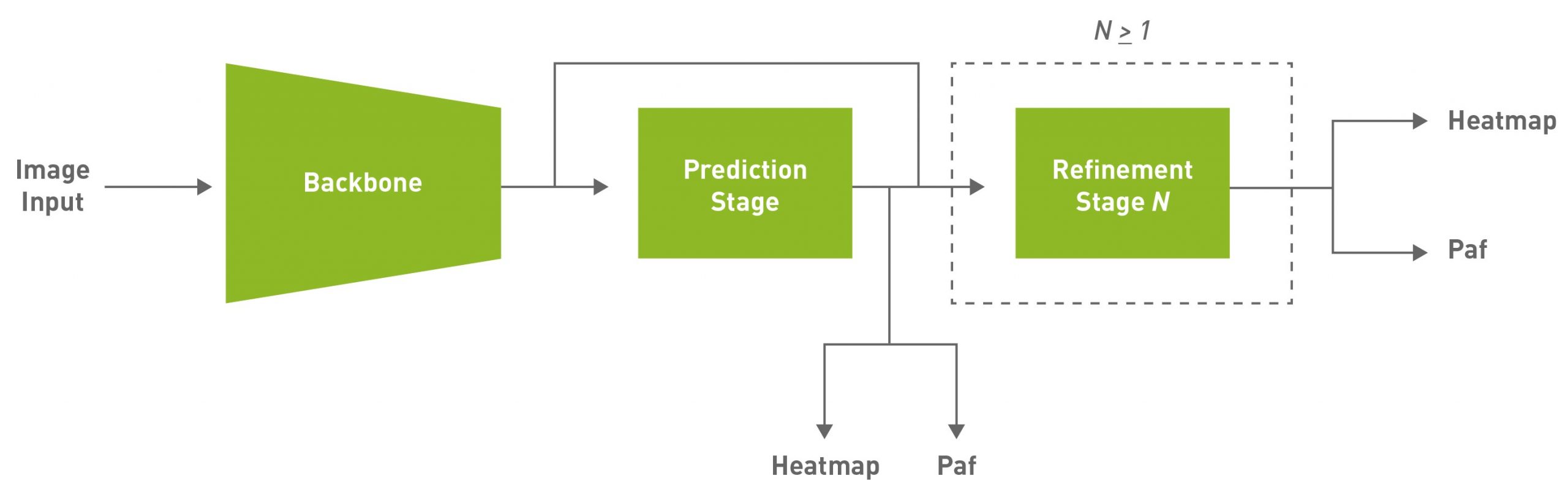
Figure 1 shows that the model architecture includes refinement stages, where each stage refines the results of the previous stage. You can use the stages parameter under the model section to configure this. stages include both the initial prediction stage and the refinement stages. We recommend using a minimum of one refinement stage, and a maximum of six, which corresponds to stages within the range [2, 7].
When you use more stages of refinement, it may help improve the accuracy but keep in mind that this would result in an increased inference time. We use a default of two refinement stages (stages=3) in this post, which is tuned for optimal performance and accuracy. For even faster performance, use stages=2.
Pruning and regularization
Pruning can help with a significant decrease in the number of parameters and maximize speed while preserving the accuracy or at the cost of some drop in accuracy. A higher pruning threshold gives you a smaller model and thus higher inference speed but might cause a drop in accuracy.
The threshold to use depends on the dataset. If the retrain accuracy is good, you can increase this value to get smaller models. Otherwise, lower this value to get better accuracy. We recommend iterating with the prune-retrain cycle until you are satisfied with the accuracy-speed tradeoff. You can also use a higher L1 regularization weight when training the model before pruning. It would push more weights towards zero, making it easier to prune the network weights.
Model accuracy and performance
In this section, we dive deeper into the model accuracy and performance, and compare it against the state of the art, and across platforms.
Comparison with OpenPose
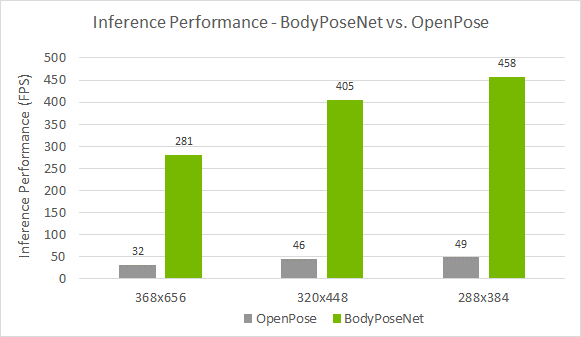
We compare this approach against OpenPose as this method follows a similar single-shot bottom-up methodology. Figure 4 shows that you achieve a much better accuracy-performance tradeoff as compared to the OpenPose model. The accuracy is lower by ~8% AP whereas you achieve close to a 9x speedup for the model trained with the default parameters provided in this post.
Figure 4. Model accuracy of BodyPoseNet compared to OpenPose
Figure 5. Inference performance of BodyPoseNet compared to OpenPose on NVIDIA RTX 2080
Standalone performance across devices
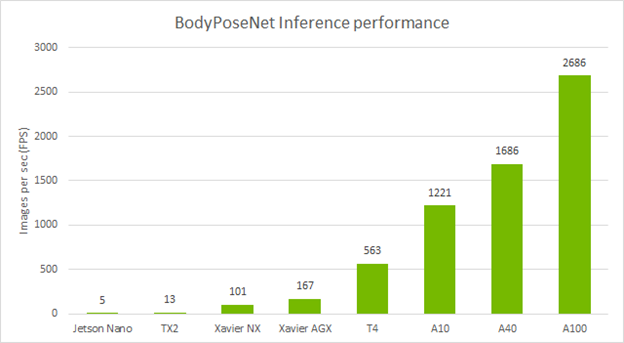
The following table shows the inference performance of the BodyPoseNet model trained with TLT by using the default parameters. We profiled the model inference with the trtexec command of TensorRT.
Figure 6. Inference performance (FPS) of BodyPoseNet across various NVIDIA platforms
Conclusion
In this post, you learned about optimizing body pose models using the BodyPoseNet app in TLT. The post showed taking an open-source COCO dataset with a pretrained backbone from NGC to train and optimize a model with TLT. For information regarding model deployment, see the TLT CV inference pipeline Quick Start Scripts and Deployment instructions.
With this model, you can get up to 9x improvement in inference performance as compared to OpenPose, helping you achieve real-time performance even on embedded devices. Pruning plus INT8 precision gives you the highest inference performance on your edge devices.
For more information, see the following resources:
Human pose estimation is a popular computer vision task of estimating key points on a person’s body such as eyes, arms, and legs. This can help classify a person’s actions, such as standing, sitting, walking, lying down, jumping, and so on. Understanding the context of what a person might be doing in a scene has … Continued
Human pose estimation is a popular computer vision task of estimating key points on a person’s body such as eyes, arms, and legs. This can help classify a person’s actions, such as standing, sitting, walking, lying down, jumping, and so on.
Understanding the context of what a person might be doing in a scene has broad application across a wide range of industries. In a retail setting, this information can be used to understand customer behavior, enhance security, and provide richer analytics. In healthcare, this can be used to monitor patients and alert medical personnel if the patient needs immediate attention. On a factory floor, human pose can be used to identify if proper safety protocols are being followed.
In general, this is a reliable approach in applications that require understanding of human activity and commonly used as one of the key components in more complex tasks such as gesture, tracking, anomaly detection, and so on.
Video 1. Pose estimation demo
Open-source methods of developing pose estimation exist but are not optimal in terms of inference performance and are time consuming to integrate into production applications. With this post, we show you how to develop and deploy pose estimation models that are easy to use across device profiles, perform extremely well, and are highly accurate.
Pose estimation has been integrated with the NVIDIA Transfer Learning Toolkit (TLT) 3.0 so that you can take advantage of all the TLT features, like model pruning and quantization, to create both an accurate and a high-performance model. After it’s trained, you can deploy this model for inference for real-time performance.
This post series walks you through the steps of training, optimizing, deploying a real-time high performance pose estimation model. In part 1, you learn how to train a 2D pose estimation model using open-source COCO dataset. In part 2, you learn how to optimize the model for inference throughput and then deploy the model using TLT CV inference pipeline. We compare the trained model from TLT with other state-of-the-art models.
Training a 2D Pose Estimation model with TLT
In this section, we cover the following topics on training a 2D pose estimation model with TLT:
Methodology
Environment setup
Data preparation
Experiment configuration file
Training
Evaluation
Model verification
Methodology
The BodyPoseNet model aims to predict the skeleton for every person in a given input image, which consists of keypoints and the connections between them.
The two commonly used approaches to pose estimation are top-down and bottom-up. A top-down approach typically uses an object detection network to localize the bounding boxes of all humans in a frame, and then uses a pose network to localize the body parts within that bounding box. A bottom-up approach, as the name suggests, builds the skeleton from bottom-up. It first detects all human body parts within a frame and then uses a methodology to group the parts that belong to a specific person.
There are several reasons to adopt a bottom-up approach. One is higher inference performance. With a bottom-up approach, there is no need for a separate person detector, unlike top-down pose estimation methods. The compute does not scale linearly with the number of persons in the scene. This enables you to achieve real-time performance for crowded scenes as well. Moreover, bottom-up also has the advantage of having global context as the entire image is provided as input to the network. It can handle complex poses and crowding better.
Given some of those reasons, this approach aims to achieve efficient single-shot, bottom-up pose estimation while also delivering competitive accuracy. The default model used in this post is a fully convolutional model and consists of a backbone network, an initial prediction stage which does a pixel-wise prediction of confidence maps (heatmap) and part-affinity fields (PAF) followed by multistage refinement (0 to N stages) on the initial predictions. This solution simplifies and abstracts much of the complexities of the bottom-up approach while allowing for the necessary knobs to be tuned for specific applications.
Figure 1. Simplified block diagram of the default model architecture.
PAFs are one way to represent association scores in a bottom-up approach. For more information, see Realtime Multi-Person 2D Pose Estimation using Part Affinity Fields. It consists of a set of 2D vector fields that encode the location and orientation of limbs. This, in association with the heatmap, is used to build up the skeleton during post-processing by performing a bipartite matching and associating body part candidates.
Environment setup
NVIDIA TLT toolkit helps abstract away the AI/DL framework complexity and enables you to build production quality models faster, with no coding required. For more information about hardware and software requirements, setting up required dependencies, and installing the TLT launcher, see the TLT Quick Start Guide.
Download the latest samples using the following command:
ngc registry resource download-version "nvidia/tlt_cv_samples:v1.1.0"
You can find the sample notebook located at tlt_cv_samples:v1.1.0/bpnet, which also includes all the steps in detail.
Set up env variables for cleaner command line commands. Update the following variable values:
export KEY=
export NUM_GPUS=1
# Local paths# The dataset is expected to be present in $LOCAL_PROJECT_DIR/bpnet/data.
export LOCAL_PROJECT_DIR=/home//tlt-experiments
export SAMPLES_DIR=/home//tlt_cv_samples_vv1.1.0
# Container paths
export USER_EXPERIMENT_DIR=/workspace/tlt-experiments/bpnet
export DATA_DIR=/workspace/tlt-experiments/bpnet/data
export SPECS_DIR=/workspace/examples/bpnet/specs
export DATA_POSE_SPECS_DIR=/workspace/examples/bpnet/data_pose_config
export MODEL_POSE_SPECS_DIR=/workspace/examples/bpnet/model_pose_config
To run the TLT launcher, map the ~/tlt-experiments directory on the local machine to the Docker container using the ~/.tlt_mounts.json file. For more information, see TLT Launcher.
Create the ~/.tlt_mounts.json file and update the following content inside:
Make sure that the source directory paths to be mounted are valid. This mounts the path /home//tlt-experiments on the host machine to be the path /workspace/tlt-experiments inside the container. It also mounts the downloaded specs on the host machine to be the path /workspace/examples/bpnet/specs, /workspace/examples/bpnet/data_pose_config, and /workspace/examples/bpnet/model_pose_config inside the container.
Make sure that you have installed the required dependencies by running the following command:
To get started, set up an NGC account and then download the pretrained model. Currently, only the vgg19 backbone is supported.
 # Create the target destination to download the model.
 mkdir -p $LOCAL_EXPERIMENT_DIR/pretrained_vgg19/

 # Download the pretrained model from NGC
 ngc registry model download-version nvidia/tlt_bodyposenet:vgg19
     --dest $LOCAL_EXPERIMENT_DIR/pretrained_vgg19
Data preparation
We use the COCO (common objects on context) 2017 dataset in this post as an example. Download the dataset and extract as per the instructions:
Unzip the images directories into the $LOCAL_DATA_DIR directory and the annotations into $LOCAL_DATA_DIR/annotations.
To prepare the data for training, you must generate segmentation masks to be used for masking the loss of unlabeled persons and tfrecords to feed to the training pipeline. The mask folder is based on the path provided in the coco_spec.json file. mask_root_dir_path directory is a relative path to root_directory_path, as are mask_root_dir_path and annotation_root_dir_path.
Prepare the data and annotations in a format similar to the COCO dataset.
Create a dataset spec under data_pose_config, similar to coco_spec.json, that includes the dataset paths, pose configuration, occlusion labeling convention, and so on.
Convert your annotations to the COCO annotations format.
The next step is to configure the spec file for training. The experiment spec file is essential, as it compiles all the necessary hyperparameters for achieving a good model. The specification file for BodyPoseNet training configures these components of the training pipe:
Trainer
Dataloader
Augmentation
Label Processor
Model
Optimizer
You can find the default specification file at $SPECS_DIR/bpnet_train_m1_coco.yaml. We expand on each component of the specification file but we don’t cover all the parameters here. For more information, see Create a Train Experiment Configuration File.
Trainer (Top-level config)
The top-level experiment configs include basic parameters for an experiment; for example, number of epochs, pretrained weights, whether to load the pretrained graph, and so on. An encrypted checkpoint is saved per the checkpoint_n_epoch value. Here’s a code example of some of the top-level configs.
All the paths (checkpoint_dir and pretrained_weights) are internal to the Docker container. To verify correctness, check ~/.tlt_mounts.json. For more information about these parameters, see the Body Pose Trainer section.
Dataloader
This section helps you with defining datapaths, image configuration, the target pose configuration, normalization parameters, and so on. The augmentation_config section provides some on-the-fly augmentation options. It supports basic spatial augmentations, such as flip, zoom, rotate, and translate, which can be configured before training experiments. The label_processor_config section provides the required parameters to configure the ground truth feature map generation.
The target_shape value depends on the image_dims and model stride values (target_shape = input_shape / model stride). The current model has a stride of 8.
Make sure to use the same root_data_path value as root_directory_path in dataset_spec. The mask and image data directories in dataset_spec are relative to root_data_path.
All paths, including pose_config_path, dataset_config, and dataset_specs, are internal to Docker.
Several spatial_augmentation_modes are supported:
person_centric: Augmentations are centered around a person of interest in the ground truth.
standard: Augmentations are standard (that is, centered around the center of the image) and the aspect ratio of the image is retained.
standard_with_fixed_aspect_ratio: Same as standard, but the aspect ratio is fixed to the network input aspect ratio.
For more information about each parameter, see the Dataloader section.
Model
The BodyPoseNet model can be configured using the model option in the spec file. The following is a sample model config to instantiate a custom VGG19-backbone-based model.
The number of total stages for pose estimation (stages of refinement + 1) in the network is captured by the stages param which takes any value >= 2. We recommend using the L1 regularizer when training a network before pruning, as L1 regularization makes it easier to prune the network weights. For more information about each parameter in the model, see the Model section.
Optimizer
This section describes how to configure the optimizer and learning-rate schedule:
The default base_learning_rate is set for a single-GPU training. To use multi-GPU training, you may have to modify the learning_rate value to get similar accuracy. In most cases, scaling up the learning rate by a factor of $NUM_GPUS would be a good start. For instance, if you are using two GPUs, use 2 * base_learning_rate used in one GPU setting, and if you are using four GPUs, use 4 * base_learning_rate. For more information about each parameter in the model, see the Optimizer section.
Training
After following the steps to generate TFRecords and masks and setting up a train specification file, you are now ready to start training the body pose estimation network. Use the following command to launch training:
Training with more GPUs enables networks to ingest more data faster, saving you precious time during the development process. TLT supports multi-GPU training so that you can train the model with several GPUs in parallel. We recommend using four GPUs or more for training the model as one GPU might take several days to complete. The training time roughly decreases by a factor of $NUM_GPUS. Make sure that you update the learning rates accordingly, based on the linear scaling method described in the Optimizer section.
BodyPoseNet supports restarting from checkpoint. In case the training job is killed prematurely, you may resume training from the last saved checkpoint by simply rerunning the same command. Make sure that you use the same number of GPUs when restarting the training.
Evaluation
Start with configuring the inference and evaluation specification file. The following code example is a sample specification:
The value of input_shape here can be different from the input_dims value used for training. The multi_scale_inference parameter enables multiscale refinement over the provided scales. Because you are using a model of stride 8, output_upsampling_factor is set to 8.
To keep the evaluation consistent with bottom-up human pose estimation research, there are two modes and specification files to evaluate the model:
$SPECS_DIR/infer_spec.yaml: Single-scale, nonstrict input. This configuration does a single-scale inference on the input image. The aspect ratio of the input image is retained by fixing one of the sides of the network input (height or width), and adjusting the other side to match the aspect ratio of the input image.
$SPECS_DIR/infer_spec_refine.yaml: Multiscale, nonstrict input. This configuration does a multiscale inference on the input image. The scales are configurable.
There is another mode used primarily to verify against the final exported TRT models. You use this in later sections.
$SPECS_DIR/infer_spec_strict.yaml: Single-scale, strict input. This configuration does a single-scale inference on the input image. Aspect ratio of the input image is retained by padding the image on the sides as needed to fit the network input size as the TRT model input dims are fixed.
The --model_filename argument overrides the model_path variable in the inference specification file.
Now that you’ve trained the model, run inference and verify the predictions. To verify the model visually with TLT, use the tlt bpnet inference command. The tool supports running inference on the .tlt model, as well as the TensorRT .engine model. It generates annotated images with skeleton rendered on them and serialized frame-by-frame keypoint labels and metadata in detections.json. For example, to run inference with a trained .tlt model, run the following command:
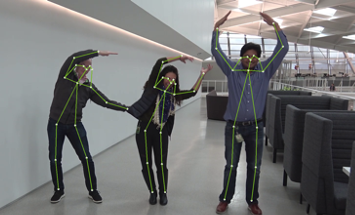
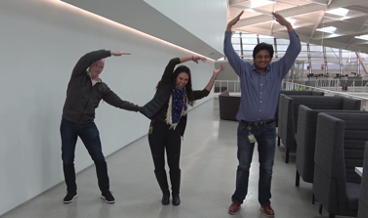
Figure 1 shows an example of the original image and Figure 2 shows the output image with pose results rendered. As you can see, the model is robust to an image that is different from the COCO training data.
Figure 2. Original image.
Figure 3. Output image with pose rendered on the original image.
Conclusion
In this post, you learned about training body pose models using the BodyPoseNet app in TLT. The post showed taking an open-source COCO dataset with a pretrained backbone from NGC to train a model with TLT. To optimize the trained model for inference and deployment, see Training and Optimizing the 2D Pose Estimation Model, Part 2.
For more information, see the following resources:
It’s time for autonomous vehicle developers to blaze new trails. NVIDIA has agreed to acquire DeepMap, a startup dedicated to building high-definition maps for autonomous vehicles to navigate the world safely. “The acquisition is an endorsement of DeepMap’s unique vision, technology and people,” said Ali Kani, vice president and general manager of Automotive at NVIDIA. “DeepMap is expected to extend our mapping products, help us Read article >
I am finishing up my CS program but have no interest in anything other than machine learning. Do you think getting the developer cert would be enough for applying to internships/jobs? TIA
In AI and computer vision, data acquisition is costly and time-consuming and human-based labeling can be error-prone. The accuracy of the models is also affected by insufficient and poorly balanced data and the prolonged time required to improve the deep learning models. It always requires the reacquisition of data in the real world. The collection, … Continued
In AI and computer vision, data acquisition is costly and time-consuming and human-based labeling can be error-prone. The accuracy of the models is also affected by insufficient and poorly balanced data and the prolonged time required to improve the deep learning models. It always requires the reacquisition of data in the real world.
The collection, preparation of data, and development of accurate and reliable software solutions based on AI training is an extremely laborious process. The required investment costs offset the expected benefits of deploying the system.
One way to bridge the data gap and accelerate model training is by using synthetic data instead of real data for training. SKY ENGINE provides an AI platform to move deep learning to virtual reality. It is possible to generate synthetic data using simulations where the synthetic images come with the annotation that can be used directly in training AI models.
Synthetic data can now be directly exported to run on the NVIDIA Transfer Learning Toolkit (TLT), an AI training toolkit that simplifies training by abstracting away the AI/DL framework complexity. This enables you to build production-quality models faster without needing any AI expertise. With the SKY ENGINE AI platform and TLT, you can quickly iterate and build AI.
In this post, you learn how you can harness the power of synthetic data by taking preannotated synthetic data and training it on TLT. I demonstrate a simple inspection use case to identify antennas on a telco tower using segmentation.
About the SKY ENGINE AI approach
SKY ENGINE introduces a full-stack AI platform for deep learning in virtual reality, which is the next-generation active learning AI system for image and video analysis applications. The SKY ENGINE AI platform can generate data using a proprietary, dedicated simulation system where images come already annotated and ready for deep learning.
The output data stream can include any of the following:
Rendered images or other simulated sensor data in selected modalities
Object bounding boxes
3D bounding boxes
Semantic masks
2D or 3D skeletons
Depth maps
Normal vector maps
SKY ENGINE AI also includes advanced domain adaptation algorithms that can understand the characteristics of real data examples. They assure the high-quality performance of any trained AI model during the inference.
Figure 1. SKY ENGINE AI platform user interface preview.
The SKY ENGINE simulation system enables physics-driven sensor simulations (cameras, thermal vision, IR, lidars, radars, and more) and sensor data fusion. It is tightly coupled with a deep learning pipeline to ensure evolution. During training, SKY ENGINE AI can spot ambiguous situations that deteriorate the accuracy of the AI model. It obtains more imagery data to reflect those problematic situations that the deep learning accuracy could instantaneously improve. SKY ENGINE AI learns more with every performed experiment.
SKY ENGINE AI delivers a garden of deep neural networks fully implemented, tested, and optimized. Provided models are dedicated to popular computer vision tasks like object detection and semantic segmentation. They can also serve as more sophisticated topologies designed and implemented for 3D position and pose estimation, 3D geometry reasoning, or representation learning.
SKY ENGINE AI also includes advanced domain adaptation algorithms that can understand the characteristics of real data examples and assure the performance of trained model inference. SKY ENGINE AI does not require sophisticated rendering and imaging knowledge, so the entry barrier is very low. It has a Python API, including a large number of helpers to quickly build and configure the environment.
Neural network optimization
The SKY ENGINE AI platform can generate the datasets and enable the training of deep learning models that can use input data originating from any source. The input stream for AI models training in NVIDIA TLT and AI-driven inference can effectively include low-quality images obtained using smartphones, data from CCTV cameras, or cameras mounted on drones.
You can deploy analytical modules for telecommunication network performance optimization on the cloud, including data storage and multi-GPU scaling. The majority of software projects driven by machine learning in this space are unable to reach the final stage of solution deployment. This could be because of the high dependence of machine learning capabilities on the quality of the input data. The development of AI models with deep training on synthetic data, offered by SKY ENGINE, is a solution with predictable project development and guaranteed deployment in several industrial business processes.
Telecommunication equipment detection and classification
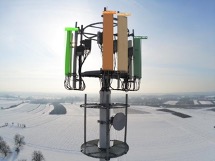
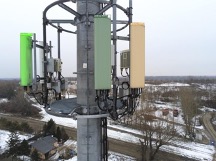
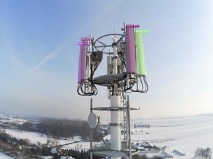
One of the common computer vision tasks is the localization and classification of the equipment of interest. In this post, I present the process of neural network optimization for bounding box localization of antenna instances on a telecommunication tower using the NVIDIA TLT environment with MaskRCNN. You use the synthetic data from SKY ENGINE AI to train the MaskRCNN model. The high-level workflow is as follows:
Generate synthetic data with annotations.
Convert the data format to COCO as required by NVIDIA TLT MaskRCNN model.
Configure the NGC environment and data preprocessing.
Train and evaluate the MaskRCNN model on synthetic data.
Perform inference using the trained AI model on synthetic and real telco towers.
Given the real samples of a telco tower, I used the SE Rendering Engine to create an annotated synthetic dataset.
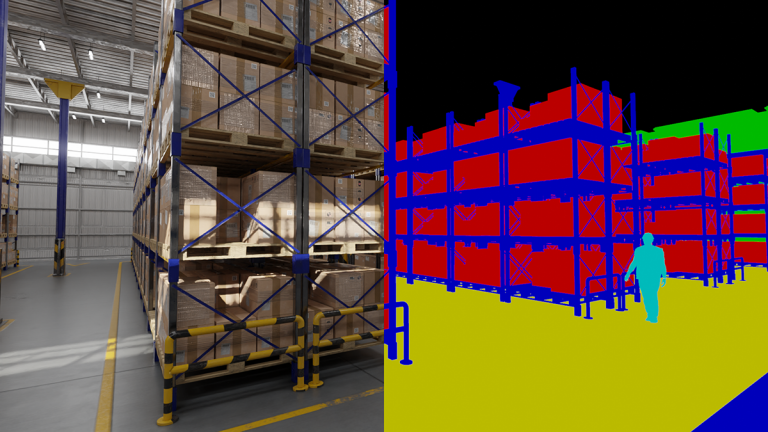
Figure 2. Synthetic images include automatically applied labels generated in the SKY ENGINE AI platform. (left) Synthetic images; (right) Semantic masks
To launch automatic generation of labeled data using SKY ENGINE AI and to prepare the data source object, you must define basic tools like empty renderer context, as well as paths where the assets for the synthetic scene are located.
In this rendering scenario, I randomized the following:
The number of antennas on a given telecommunication tower
The direction of the light
The positions of the camera
The camera’s horizontal field of view
A background map
There can be many projects in which the samples returned by SKY ENGINE are not shuffled enough. One example would be when your rendering process follows the camera trajectory. For this reason, I recommend extra shuffling of the data before dividing it into train and test sets.
After generating the images, convert them to COCO format using the data export module of SKY ENGINE. This is required by the NVIDIA TLT framework. After you prepare the configuration file according to the documentation, you can run the training for the TLT pretrained Mask RCNN model with the TensorFlow backend:
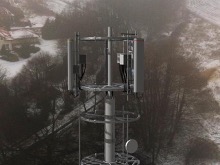
Figure 3 shows some results of telecommunication antenna detection.
Figure 3. Application of trained AI models on real images.
Summary
In this post, I demonstrated how you can reduce your data collection and annotation effort by using the synthetic data from SKY ENGINE and training and optimizing it with NVIDIA TLT. I presented a single SKY ENGINE AI use case for telecommunication industry. However, this platform unlocks the universe of further potential applications delivering several advanced functionalities:
Automated dataset balancing (active learning)
Domain adaptation
Pretrained deep learning models for 3D reasoning
Simulations of sensors and training of deep learning models for sensor fusion
For more information, see the SKY ENGINE AI solution on GitHub. For more computer vision use cases developed in the SKY ENGINE AI Platform, see the following videos:
Thousands of U.S. traffic lights may soon be getting the green light on AI for safer streets. That’s because startup CVEDIA has designed better and faster vehicle and pedestrian detections to improve traffic flow and pedestrian safety for Cubic Transportation Systems. These new AI capabilities will be integrated into Cubic’s GRIDSMART Solution, a single-camera intersection Read article >
The long, cumbersome slog of data procurement has been slowing down innovation in AI, especially in computer vision, which relies on labeled images and video for training. But now you can jumpstart your machine learning process by quickly generating synthetic data using AI.Reverie. With the AI.Reverie synthetic data platform, you can create the exact training … Continued
The long, cumbersome slog of data procurement has been slowing down innovation in AI, especially in computer vision, which relies on labeled images and video for training. But now you can jumpstart your machine learning process by quickly generating synthetic data using AI.Reverie.
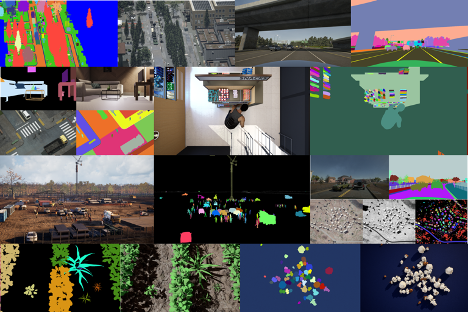
With the AI.Reverie synthetic data platform, you can create the exact training data that you need in a fraction of the time it would take to find and label the right real photography. In AI.Reverie’s photorealistic 3D environments, you can generate data for all possible scenarios, including hard to reach places, unusual environmental conditions, and rare or unique events.
Training data generation includes labels. Choose the needed types, such as 2D or 3D bounding boxes, depth masks, and so on. After you test your model, you can return to the platform to quickly generate additional data to improve accuracy. Test and repeat in quick, iterative cycles.
We wanted to test performance of AI.Reverie synthetic data in NVIDIA Transfer Learning Toolkit 3.0. Originally, we set out to replicate the results in the research paper RarePlanes: Synthetic Data Takes Flight, which used synthetic imagery to create object detection models. We discovered new tools in TLT that made it possible to create more lightweight models that were as accurate as, but much faster than, those featured in the original paper.
In this post, we show you how we used the TLT quantized-aware training and model pruning to accomplish this, and how to replicate the results yourself. We show you how to create an airplane detector, but you should be able to fine-tune the model for various satellite detection scenarios of your own.
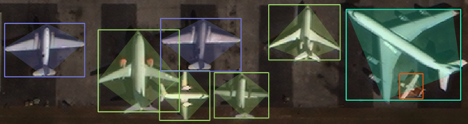
Figure 1. A synthetic image featuring annotations that denote aircraft type, wing shape, and other distinguishing features.
Access the satellite detection model
To replicate these results, you can clone the GitHub repository and follow along with the included Jupyter notebook.
Generate synthetic data using the AI.Reverie platform and use it with NVIDIA TLT.
Train highly accurate models using synthetic data.
Optimize a model for inference using the TLT.
Prerequisites
We tested the code with Python 3.8.8, using Anaconda 4.9.2 to manage dependencies and the virtual environment. The code may work with different versions of Python and other virtual environment solutions, but we haven’t tested those configurations. We used Ubuntu 18.04.5 LTS and NVIDIA driver 460.32.03 and CUDA Version 11.2. TLT requires driver 455.xx or later.
Set up NGC to be able to download NVIDIA Docker containers. Follow steps 4 and 5 in the TLT User Guide. For more information about the NGC CLI tool, see CLI Install.
Have available at least 250 GB hard disk space to store dataset and model weights.
For this tutorial, you need only download a subset of the data. The following code example is meant to be executed from within the Jupyter notebook. First, create the folders:
TLT uses the KITTI format for object detection model training. RarePlanes is in the COCO format, so you must run a conversion script from within the Jupyter notebook. This converts the real train/test and synthetic train/test datasets.
%run convert_coco_to_kitti.py
There should now be a folder for each dataset split inside of data/kitti that contains the KITTI formatted annotation text files and symlinks to the original images.
Setting up TLT mounts
The notebook has a script to generate a ~/.tlt_mounts.json file. For more information about the various settings, see Running the launcher.
You must turn the KITTI labels into the TFRecord format used by TLT. The convert_split function in the notebook helps you bulk convert all the datasets:
 def convert_split(name):
     !tlt detectnet_v2 dataset_convert --gpu_index 0
         -d /workspace/tlt-experiments/specs/detectnet_v2_tfrecords_{name}.txt
         -o /workspace/tlt-experiments/data/tfrecords/{name}/{name}
 You can then run the conversions:
 convert_split('kitti_real_train')
 convert_split('kitti_real_test')
 convert_split('kitti_synthetic_train')
 convert_split('kitti_synthetic_test')
Download the ResNet18 convolutional backbone
Using your NGC account and command-line tool, you can now download the model:
Download the ResNet18 convolutional backbone
Using your NGC account and command-line tool, you can now download the model:
!ngc registry model download-version nvidia/tlt_pretrained_detectnet_v2:resnet18
 Validation cost: 0.001133
 Mean average_precision (in %): 94.2563

 class name      average precision (in %)
 ------------  --------------------------
 aircraft                         94.2563

 Median Inference Time: 0.003877
 2021-04-06 05:47:00,323 [INFO] __main__: Evaluation complete.
 Time taken to run __main__:main: 0:00:27.031500.
 2021-04-06 05:47:02,466 [INFO] tlt.components.docker_handler.docker_handler: Stopping container.
You then use this function to replace the checkpoint in your template spec with the best performing model from the synthetic-only training.
 with open('./specs/detectnet_v2_train_resnet18_kitti_synth_finetune_10.txt', 'r') as f_in:
     with open('./specs/detectnet_v2_train_resnet18_kitti_synth_finetune_10_replaced.txt', 'w') as f_out:
         out = f_in.read().replace('REPLACE', best_checkpoint)
         f_out.write(out)
You can now begin a TLT training. Start your fine-tuning with the best-performing epoch of the model trained on synthetic data alone, in the previous section.
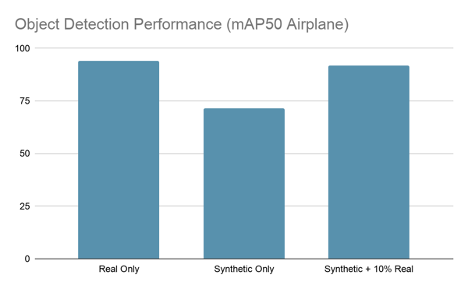
After training has completed, you should see a best epoch of between 91-93% mAP50, which gets you close to the real-only model performance with only 10% of the real data.
In the notebook, there’s a command to evaluate the best performing model checkpoint on the test set:
You should see something like the following output:
2021-04-06 18:05:28,342 [INFO] iva.detectnet_v2.evaluation.evaluation: step 330 / 339, 0.05s/step
Matching predictions to ground truth, class 1/1.: 100%|█| 14719/14719 [00:00
Figure 2. Training on synthetic + 10% real data nearly matches the results of training on 100% of the real data.
Data enhancement is fine-tuning a model training on AI.Reverie’s synthetic data with just 10% of the original, real dataset. As you can see, this technique produces a model as accurate as one trained on real data alone. That represents roughly 90% cost savings on real, labeled data and saves you from having to endure a long hand-labeling and QA process.
Pruning the model
Having trained a well-performing model, you can now decrease the number of weights to cut down on file size and inference time. TLT includes an easy-to-use pruning tool.
The one argument to play with is -pth, which sets the threshold for neurons to prune. The higher you set this, the more parameters are pruned, but after a certain point your accuracy metric may drop too low. We found that a value of 0.5 worked for these experiments, but you may find different results on other datasets.
You should see something like the following outputs:
Total params: 3,372,973
Trainable params: 3,366,573
Non-trainable params: 6,400
This is 70% smaller than the original model, which had 11.2 million parameters! Of course, you’ve lost performance by dropping so many parameters, which you can verify:
Luckily, you can recover almost all the performance by retraining the pruned model.
Retraining the models
As before, there is a template spec to run this experiment that only requires you to fill in the location of the pruned model:
with open('./specs/detectnet_v2_train_resnet18_kitti_synth_finetune_10_pruned_retrain.txt', 'r') as f_in:
with open('./specs/detectnet_v2_train_resnet18_kitti_synth_finetune_10_pruned_retrain_replaced.txt', 'w') as f_out:
out = f_in.read().replace('REPLACE', 'detectnet_v2_outputs/pruned/pruned-model.tlt')
f_out.write(out)
On a run of this experiment, the best performing epoch achieved 91.925 mAP50, which is about the same as the original nonpruned experiment.
2021-04-06 19:33:39,360 [INFO] iva.detectnet_v2.evaluation.evaluation: step 330 / 339, 0.05s/step
Matching predictions to ground truth, class 1/1.: 100%|█| 17403/17403 [00:01
Quantizing the models
The final step in this process is quantizing the pruned model so that you can achieve much higher levels of inference speed with TensorRT. We have a quantization aware training (QAT) spec template available:
with open('./specs/detectnet_v2_train_resnet18_kitti_synth_finetune_10_pruned_retrain_qat.txt', 'r') as f_in:
with open('./specs/detectnet_v2_train_resnet18_kitti_synth_finetune_10_pruned_retrain_qat_replaced.txt', 'w') as f_out:
out = f_in.read().replace('REPLACE', 'detectnet_v2_outputs/pruned/pruned-model.tlt')
f_out.write(out)
2021-04-06 23:08:28,471 [INFO] iva.detectnet_v2.evaluation.tensorrt_evaluator: step 330 / 339, 0.33s/step
Matching predictions to ground truth, class 1/1.: 100%|█| 21973/21973 [00:01
Conclusion
We were impressed by these results. AI.Reverie’s synthetic data platform, with just 10% of the real dataset, enabled us to achieve the same performance as we did when training on the full real dataset. That represents a cost savings of roughly 90%, not to mention the time saved on procurement. It now takes days, not months, to generate the needed synthetic data.
TLT also produced a 25.2x reduction in parameter count, a 33.6x reduction in file size, a 174.7x increase in performance (QPS), while retaining 95% of the original performance. TLT’s capabilities were particularly valuable for pruning and quantizing.
I am planning to give the Tensorflow Developer Certification Exam.
I have gone through a lot of resources online on how other candidates have successfully cleared this exam.
I have already gone through the TensorFlow Developer Certification Handbook (candidate handbook and environment setup) which outlines the different topics that will be covered in this exam.
I have created a learning path for myself and planning to go through the following resources:
-> Coursera Tensorflow in Practice Specialization
-> Youtube Playlist: Machine Learning Foundation by Laurence Moroney, Coding Tensorflow, MIT Introduction to Deep Learning, CNN, Sequal models by Andrew Ng
-> Pycharm Tutorial Series and Environment set up guidelines
-> Hands-on Machine Learning with Sckit Learn, Keras, and Tensorflow (Ch. 10 to Ch. 16)
Apart from the resources, I have mentioned do you recommend or suggest any other valuable source of material that I should go through or add to my current learning path?

 The first post in this series covered how to train a 2D pose estimation model using an open-source COCO dataset with the BodyPoseNet app in the NVIDIA Transfer Learning Toolkit. In this post, you learn how to optimize the pose estimation model in the NVIDIA Transfer Learning Toolkit. It walks you through the steps of …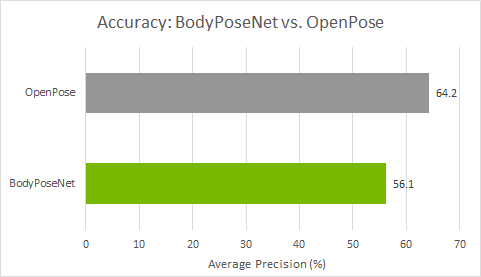
 In AI and computer vision, data acquisition is costly and time-consuming and human-based labeling can be error-prone. The accuracy of the models is also affected by insufficient and poorly balanced data and the prolonged time required to improve the deep learning models. It always requires the reacquisition of data in the real world. The collection, …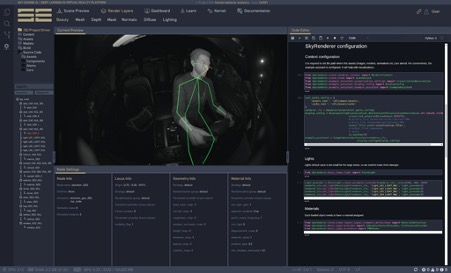

 The long, cumbersome slog of data procurement has been slowing down innovation in AI, especially in computer vision, which relies on labeled images and video for training. But now you can jumpstart your machine learning process by quickly generating synthetic data using AI.Reverie. With the AI.Reverie synthetic data platform, you can create the exact training …