
As generative AI and large language models (LLMs) continue to drive innovations, compute requirements for training and inference have grown at an astonishing pace. To meet that need, Google Cloud today announced the general availability of its new A3 instances, powered by NVIDIA H100 Tensor Core GPUs. These GPUs bring unprecedented performance to all kinds Read article >
Category: Misc
 Generative AI has become a transformative force of our era, empowering organizations spanning every industry to achieve unparalleled levels of productivity,…
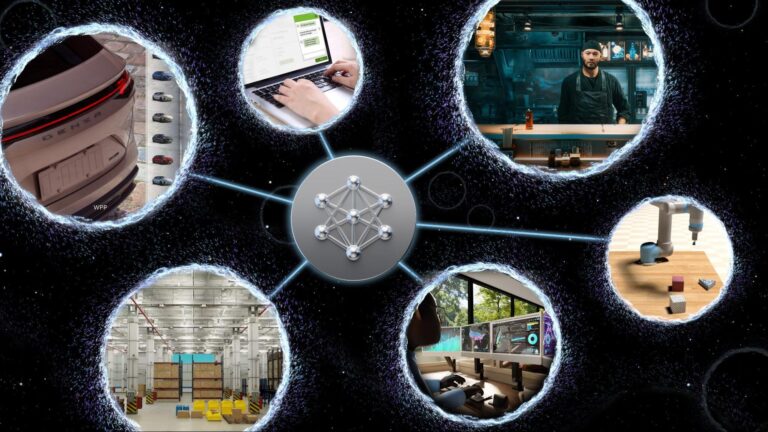
Generative AI has become a transformative force of our era, empowering organizations spanning every industry to achieve unparalleled levels of productivity, elevate customer experiences, and deliver superior operational efficiencies.
Large language models (LLMs) are the brains behind generative AI. Access to incredibly powerful and knowledgeable foundation models, like Llama and Falcon, has opened the door to amazing opportunities. However, these models lack the domain-specific knowledge required to serve enterprise use cases.
Developers have three choices for powering their generative AI applications:
- Pretrained LLMs: the easiest lift is to use foundation models, which work very well for use cases that rely on general-purpose knowledge.
- Custom LLMs: pretrained models customized with domain-specific knowledge, and task-specific skills, connected to enterprises’ knowledge bases perform tasks and provide responses based on the latest proprietary information.
- Develop LLMs: organizations with specialized data (for example, models catering to regional languages) cannot use pretrained foundation models and must build their models from scratch.
NVIDIA NeMo is an end-to-end, cloud-native framework for building, customizing, and deploying generative AI models. It includes training and inferencing frameworks, guardrails, and data curation tools, for an easy, cost-effective, and fast way to adopt generative AI.
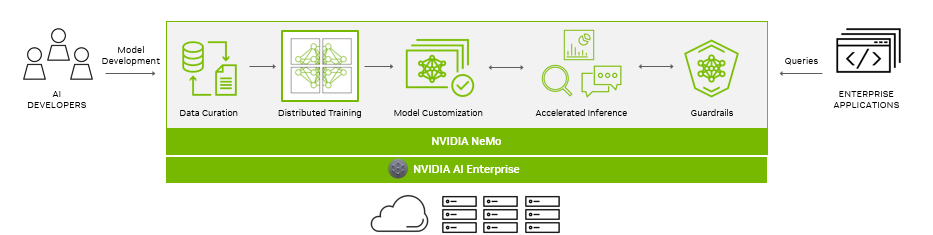
As generative AI models and their development continue to progress, the AI stack and its dependencies become increasingly complex. For enterprises running their business on AI, NVIDIA provides a production-grade, secure, end-to-end software solution with NVIDIA AI Enterprise.
Organizations are running their mission-critical enterprise applications on Google Cloud, a leading provider of GPU-accelerated cloud platforms. NVIDIA AI Enterprise, which includes NeMo and is available on Google Cloud, helps organizations adopt generative AI faster.
Building a generative AI solution requires that the full stack, from compute to networking, systems, management software, training, and inference SDKs work in harmony.
At Google Cloud Next 2023, Google Cloud announced the general availability of their A3 instances powered by NVIDIA H100 Tensor Core GPUs. Engineering teams from both companies are collaborating to bring NeMo to the A3 instances for faster training and inference.
In this post, we cover training and inference optimizations developers can enjoy while building and running their custom generative AI models on NVIDIA H100 GPUs.
Data curation at scale
The potential of a single LLM achieving exceptional outcomes across diverse tasks is due to training on an immense volume of Internet-scale data.
NVIDIA NeMo Data Curator facilitates the handling of trillion-token multilingual training data for LLMs. It consists of a collection of Python modules leveraging MPI, Dask, and a Redis cluster to scale tasks involved in data curation efficiently. These tasks include data downloads, text extractions, text reformatting, quality filtering, and removal of exact or fuzzy duplicate data. This tool can distribute these tasks across thousands of computational cores.
Using these modules aids developers in swiftly sifting through unstructured data sources. This technology accelerates model training, reduces costs through efficient data preparation, and yields more precise results.
Accelerated model training
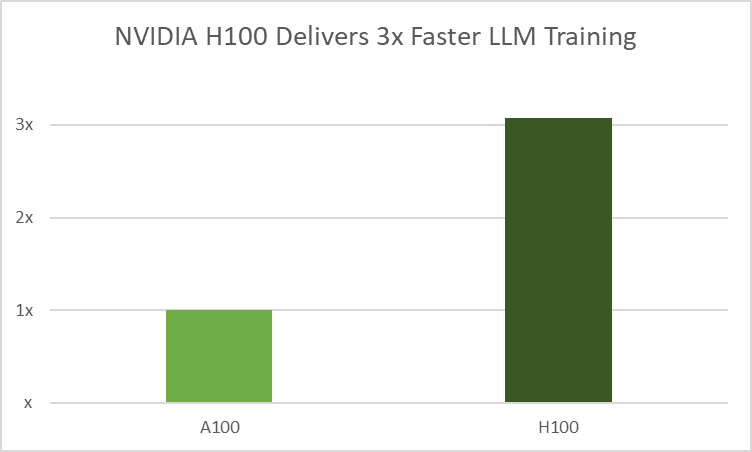
NeMo employs distributed training using sophisticated parallelism methods to use GPU resources and memory across multiple nodes on a large scale. By breaking down the model and training data, NeMo enables optimal throughput and significantly reduces the time required for training, which also speeds up TTM.
H100 GPUs employ NVIDIA Transformer Engine (TE), a library that enhances AI performance by combining 16-bit and 8-bit floating-point formats with advanced algorithms. It achieves faster LLM training without losing accuracy by reducing math operations to FP8 from the typical FP16 and FP32 formats used in AI workloads. This optimization uses per-layer statistical analysis to increase precision for each model layer, resulting in optimal performance and accuracy.
AutoConfigurator delivers developer productivity
Finding model configurations for LLMs across distributed infrastructure is a time-consuming process. NeMo provides AutoConfigurator, a hyperparameter tool to find optimal training configurations automatically, enabling high throughput LLMs to train faster. This saves developers time searching for efficient model configurations.
It applies heuristics and grid search techniques to various parameters, such as tensor parallelism, pipeline parallelism, micro-batch size, and activation checkpointing layers, aimed at determining configurations with the highest throughputs.
AutoConfigurator can also find model configurations that achieve the highest throughput or lowest latency during inference. Latency and throughput constraints can be provided to deploy the model, and the tool will recommend suitable configurations.
Review the recipes for building generative AI models of various sizes for GPT, MT5, T5, and BERT architectures.
Model customization
In the realm of LLMs, one size rarely fits all, especially in enterprise applications. Off-the-shelf LLMs often fall short in catering to the distinct requirements of the organizations, whether it’s the intricacies of specialized domain knowledge, industry jargon, or unique operational scenarios.
This is precisely where the significance of custom LLMs comes into play. Enterprises must fine-tune models that support the capabilities for specific use cases and domain expertise. These customized models provide enterprises with the means to create solutions personalized to match their brand voice and streamline workflows, for more accurate insights, and rich user experiences.
NeMo supports a variety of customization techniques, for developers to use NVIDIA-built models by adding functional skills, focusing on specific domains, and implementing guardrails to prevent inappropriate responses.
Additionally, the framework supports community-built pretrain LLMs including Llama 2, BLOOM, and Bart, and supports GPT, T5, mT5, T5-MoE, and Bert architectures.
- P-Tuning trains a small helper model to set the context for the frozen LLM to generate a relevant and accurate response.
- Adapters/IA3 introduce small, task-specific feedforward layers within the core transformer architecture, adding minimal trainable parameters per task. This makes for easy integration of new tasks without reworking existing ones.
- Low-Rank Adaption uses compact additional modules to enhance model performance on specific tasks without substantial changes to the original model.
- Supervised Fine-tuning calibrates model parameters on labeled data of inputs and outputs, teaching the model domain-specific terms and how to follow user-specified instructions.
- Reinforcement Learning with Human Feedback enables LLMs to achieve better alignment with human values and preferences.
Learn more about various LLM customization techniques.
Accelerated inference
Community LLMs are growing at an explosive rate, with increased demand from companies to deploy these models into production. The size of these LLMs is driving the cost and complexity of deployment higher, requiring optimized inference performance for production applications. Higher performance not only helps decrease costs but also improves user experiences.
LLMs such as LLaMa, BLOOM, ChatGLM, Falcon, MPT, and Starcoder have demonstrated the potential of advanced architectures and operators. This has created a challenge in producing a solution that can efficiently optimize these models for inference, something that is highly desirable in the ecosystem.
NeMo employs MHA and KV cache optimizations, flash attention, quantized KV cache, and paged attention, among other techniques to solve the large set of LLM optimization challenges. It enables developers to try new LLM and customize foundation models for peak performance without requiring deep knowledge of C++ or NVIDIA CUDA optimization.
NeMo also leverages NVIDIA TensorRT deep learning compiler, pre- and post-processing optimizations, and multi-GPU multi-node communication. In an open-source Python API, it defines, optimizes, and executes LLMs for inference in production applications.
NeMo Guardrails
LLMs can be biased, provide inappropriate responses, and hallucinate. NeMo Guardrails is an open-source, programmable toolkit for addressing these challenges. It sits between the user and the LLM, screening and filtering inappropriate user prompts as well as LLM responses.
Building guardrails for various scenarios is straightforward. First, define a guardrail by providing a few examples in natural language. Then, define a response when a question on that topic is generated. Lastly, define a flow, which dictates the set of actions to be taken when the topic or the flow is triggered.
NeMo Guardrails can help the LLM stay focused on topics, prevent toxic responses, and make sure that replies are generated from credible sources before they are presented to users. Read about building trustworthy, safe, and secure LLM conversational systems.
Simplify deployment with ecosystem tools
NeMo works with MLOps ecosystem technologies such as Weights & Biases (W&B) providing powerful capabilities for accelerating the development, tuning, and adoption of LLMs.
Developers can debug, fine-tune, compare, and reproduce models with the W&B MLOps platform. W&B Prompts help organizations understand, tune, and analyze LLM performance. W&B integrates with Google Cloud products commonly used in ML development.
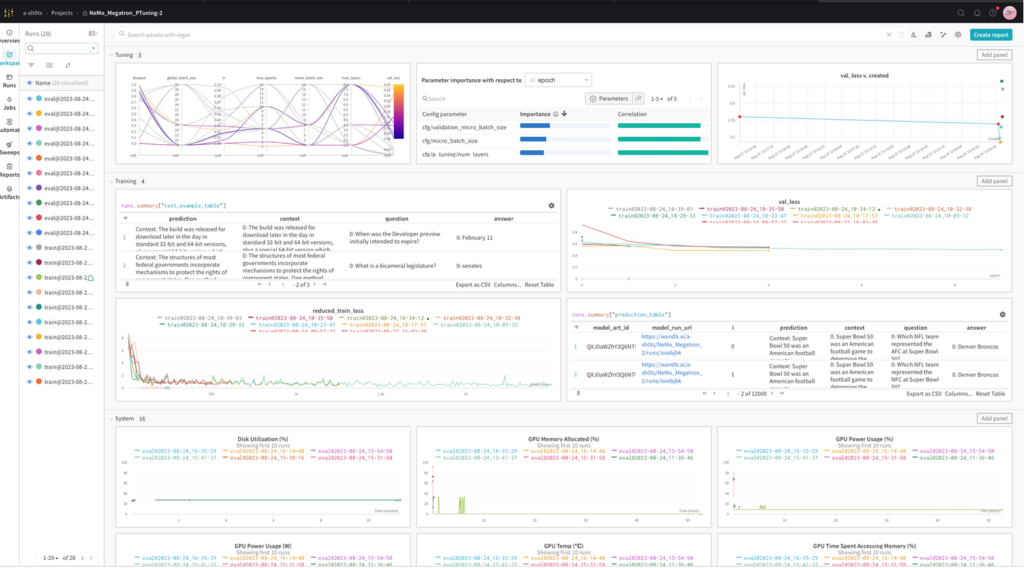
The combination of NeMo, W&B, and Google Cloud is on display at the NVIDIA booth at Google Cloud Next.
Fuel generative AI applications
Writer, a leading generative AI-based content creation service, is harnessing NeMo capabilities and accelerated compute on Google Cloud. They’ve built up to 40B parameter language models that now cater to hundreds of customers, revolutionizing content generation.
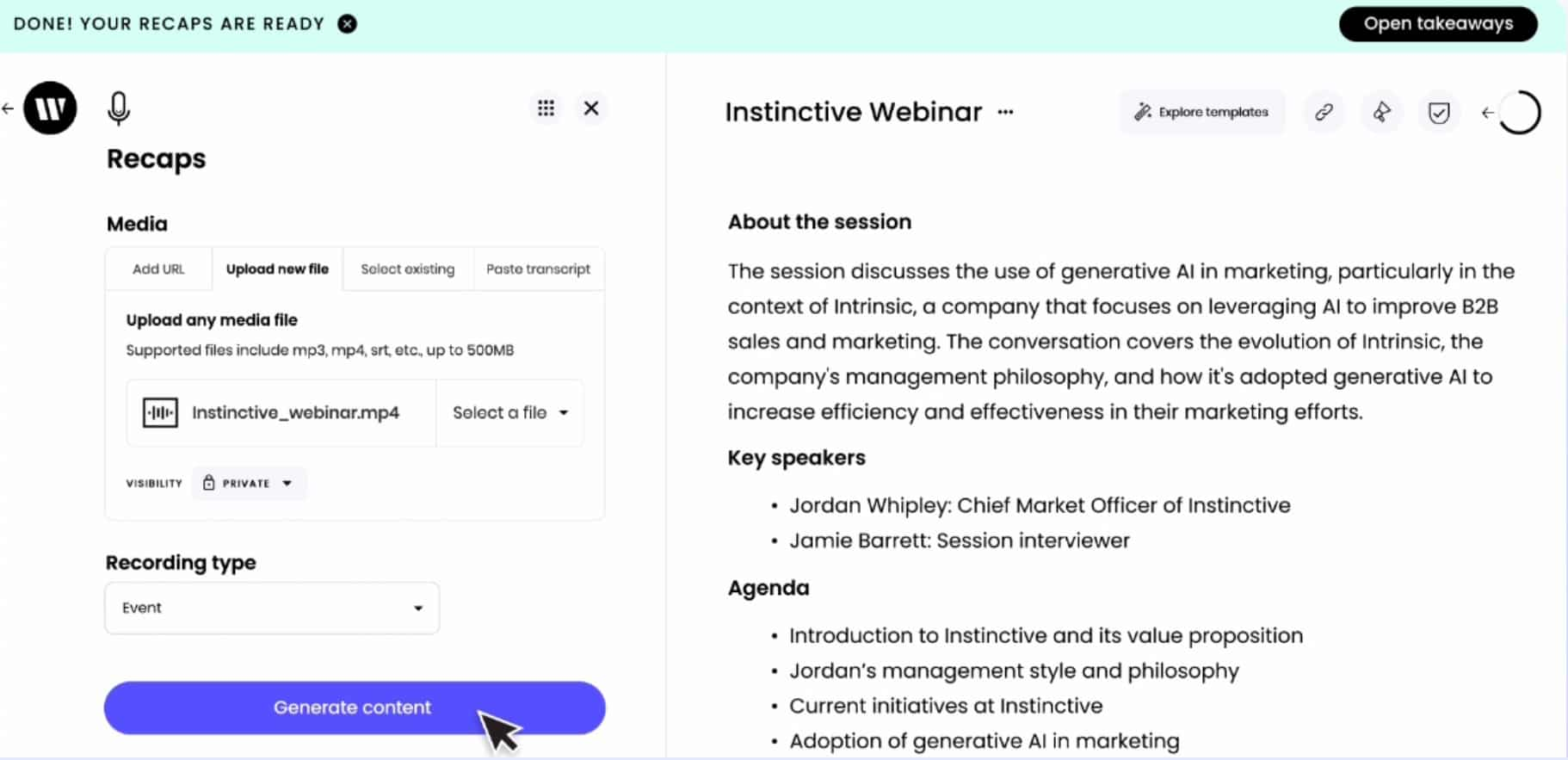
Figure 4. The Writer Recap tool creates written summaries from audio recordings of an interview or event
APMIC is another success story with NeMo at its core. With a dual focus, they leverage NeMo for two distinct use cases. They’ve supercharged their contract verification and verdict summarization processes through entity linking, extracting vital information from documents quickly. They are also using NeMo to customize GPT models, offering customer service and digital human interaction solutions by powering question-answering systems.
Start building your generative AI application
Using AI playground, you can experience the full potential of community and NVIDIA-built generative AI models, optimized for the NVIDIA accelerated stack, directly through your web browser.
Customize GPT, mT5, or BERT-based pretrained LLMs from Hugging Face using NeMo on Google Cloud:
- Access NeMo from GitHub.
- Pull the NeMo container from NGC to run across GPU-accelerated platforms.
- Access NeMo from NVIDIA AI Enterprise available on Google Cloud Marketplace with enterprise-grade support and security.
Get started with NVIDIA NeMo today.
 From start-ups to large enterprises, businesses use cloud marketplaces to find the new solutions needed to quickly transform their businesses. Cloud…
From start-ups to large enterprises, businesses use cloud marketplaces to find the new solutions needed to quickly transform their businesses. Cloud marketplaces are online storefronts where customers can purchase software and services with flexible billing models, including pay-as-you-go, subscriptions, and privately negotiated offers. Businesses further benefit from committed spending at discount prices and a single source of billing and invoicing that saves time and resources.
NVIDIA Riva state-of-the-art speech and translation AI services are on the largest cloud service providers (CSP) marketplaces:
Companies can quickly find high-performance speech and translation AI that can be fully customized to best fit conversational pipelines such as question and answering services, intelligent virtual assistants, digital avatars, and agent assists for contact centers in different languages.
Organizations can quickly run Riva on the public cloud or integrate it with cloud provider services with greater confidence and a better return on their investment. With NVIDIA Riva in the cloud, you can now get instant access to Riva speech and translation AI through your browser—even if you don’t currently have your own on-premises GPU-accelerated infrastructure.
Purchase NVIDIA Riva from the marketplace, or use existing cloud credits. Contact NVIDIA for discounted private pricing through a Amazon Web Services, Google Cloud Platform, or Microsoft Azure private offer.
In this post and the associated videos, using Spanish-to-English speech-to-speech (S2S) translation as an example, you learn how to prototype and test Riva on a single CSP node. This post also covers deploying Riva in production at scale on a managed Kubernetes cluster.
Prototype and test Riva on a single node
Before launching and scaling a conversational application with Riva, prototype and test on a single node to find defects and improvement areas and ensure perfect production performance.
- Select and launch the Riva virtual machine image (VMI) on the public CSPs
- Access the Riva container on the NVIDIA GPU Cloud (NGC) catalog
- Configure the NGC CLI
- Edit the Riva Skills Quick Start configuration script and deploy the Riva server
- Get started with Riva with tutorial Jupyter notebooks
- Run speech-to-speech (S2S) translation inference
Video 1 explains how to launch a GCP virtual machine instance from the Riva VMI and connect to it from a terminal.
Video 2 shows how to start the Riva Server and run Spanish-to-English speech-to-speech translation in the virtual machine instance.
Select and launch the Riva VMI on a public CSP
The Riva VMI provides a self-contained environment that enables you to run Riva on single nodes in public cloud services. You can quickly launch with the following steps.
Go to your chosen CSP:
Choose the appropriate button to begin configuring the VM instance.
- Set the compute zone, GPU and CPU types, and network security rules. The S2S translation demo should only take 13-14 GB of GPU memory and should be able to run on a 16 GB T4 GPU.
- If necessary, generate an SSH key pair.
Deploy the VM instance and edit it further, if necessary. Connect to the VM instance using SSH and a key file in your local terminal (this is the safest way).
Connecting to a GCP VM instance with SSH and a key file requires the gcloud CLI rather than the built-in SSH tool. Use the following command format:
gcloud compute ssh --project= --zone= -- -L 8888:localhost:8888
If you’ve already added the Project_ID and compute-zone values to your gcloud config, you can omit those flags in the command. The -L flag enables port forwarding, which enables you to launch Jupyter on the VM instance and access it in your local browser as though the Jupyter server were running locally.
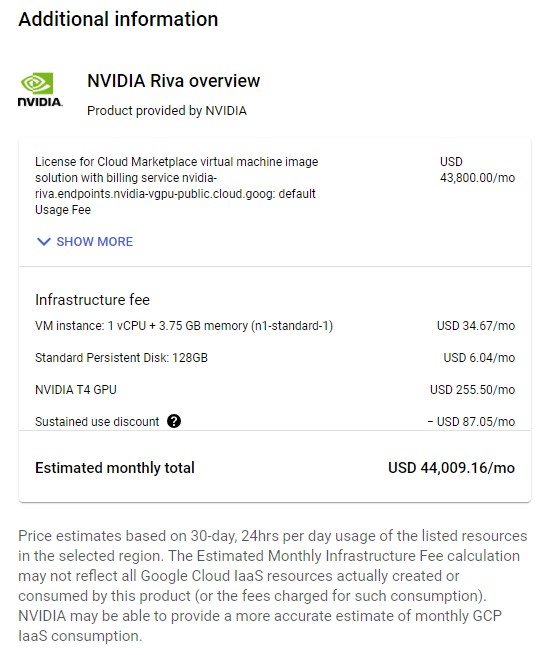
Access the Riva container on NGC
The NGC catalog is a curated set of GPU-accelerated AI models and SDKs to help you quickly infuse AI into your applications.
The easiest way to download the Riva containers and desired models into the VM instance is to download the Riva Skills Quick Start resource folder with the appropriate ngc command, edit the provided config.sh script, and run the riva_init.sh and riva_start.sh scripts.
An additional perk for Riva VMI subscribers is access to the NVIDIA AI Enterprise Catalog on NGC.
Configure the NGC CLI to access resources
Your NGC CLI configuration ensures that you can access NVIDIA software resources. The configuration also determines which container registry space you can access.
The Riva VMI already provides the NGC CLI, so you don’t have to download or install it. You do still need to configure it.
Generate an NGC API key, if necessary. At the top right, choose your name and org. Choose Setup, Get API Key, and Generate API Key. Make sure to copy and save your newly generated API key someplace safe.
Run ngc config set and paste in your API key. Set the output format for the results of calls to the NGC CLI and set your org, team, and ACE.
Edit the Riva Skills Quick Start configuration script and deploy the Riva Server
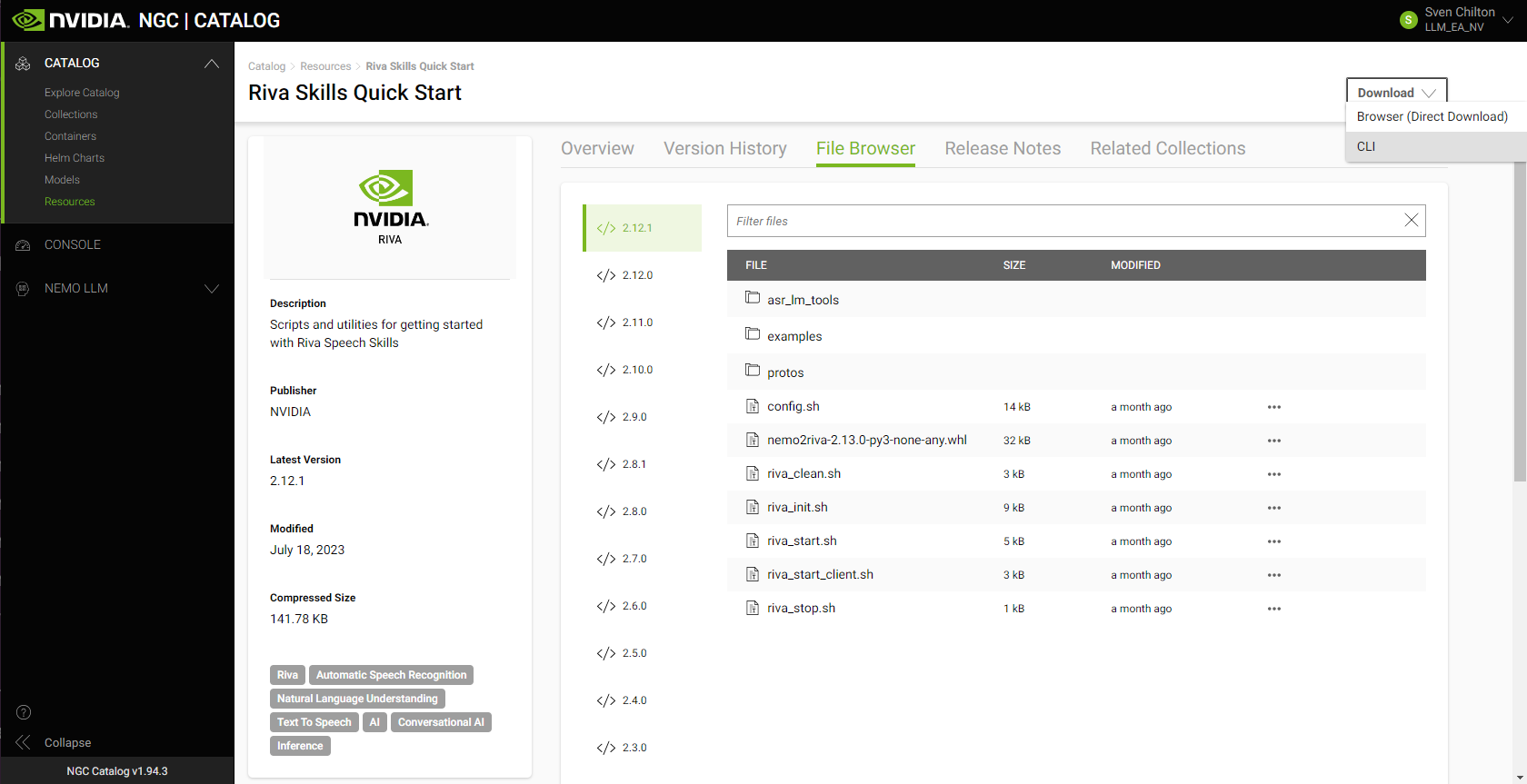
Riva includes Quick Start scripts to help you get started with Riva speech and translation AI services:
- Automatic speech recognition (ASR)
- Text-to-speech (TTS)
- Several natural language processing (NLP) tasks
- Neural machine translation (NMT)
On the asset’s NGC overview page, choose Download. To copy the appropriate NGC CLI command into your VM instance’s terminal, choose CLI:
ngc registry resource download-version "nvidia/riva/riva_quickstart:2.12.1"
At publication time, 2.12.1 is the most recent version of Riva. Check the NGC catalog or the Riva documentation page for the latest version number.
After downloading the Riva Skills Quick Start resource folder in your VM instance’s terminal, implement a Spanish-to-English speech-to-speech (S2S) translation pipeline.
In the Riva Skills Quick Start home directory, edit the config.sh script to tell Riva which services to enable and which model files in the .rmir format to download.
Set service_enabled_nlp=false but leave the other services as true. You need Spanish ASR, Spanish-to-English NMT, and English TTS. There is no need for NLP.
To enable Spanish ASR, change language_code=("en-US") to language_code=("es-US").
Uncomment the line containing rmir_megatronnmt_any_en_500m to enable NMT from Spanish (and any of over 30 additional languages) to English.
To download the desired .rmir files and deploy them, run the following command. riva_init.sh wraps around the riva-deploy command.
bash riva_init.sh config.sh
To start the Riva server, run the following command:
bash riva_start.sh config.sh
If the server doesn’t start, output the relevant Docker logs to a file:
docker logs riva-speech &> docker-logs-riva-speech.txt
Inspect the file. If you see any CUDA out-of-memory errors, your model pipeline is too big for your GPU.
Get started with Riva through Jupyter notebook tutorials
One of the best ways to get started with Riva is to work through the Jupyter notebook tutorials in the /nvidia-riva/tutorials GitHub repo:
git clone https://github.com/nvidia-riva/tutorials.git
The VMI already contains a miniconda Python distribution, which includes Jupyter. Create a new conda environment from the base (default) environment in which to install dependencies, then launch Jupyter.
Clone the base (default) environment:
conda create --name conda-riva-tutorials --clone base
Activate the new environment:
conda activate conda-riva-tutorials
Install an iPython kernel for the new environment:
ipython kernel install --user --name=conda-riva-tutorials
Launch Jupyter Lab:
jupyter lab --allow-root --ip 0.0.0.0 --port 8888
If you set up port forwarding when connecting to the VM instance with gcloud compute ssh, choose the link containing 127.0.0.1 to run Jupyter Lab in your local browser. If not, enter the following into your browser bar to run Jupyter Lab:
- Your VM instance’s external IP address
- A colon (:)
- The port number (presumably
8888) /lab?token=
If you don’t want to copy and paste the token in the browser bar, the browser asks you to enter the token in a dialog box instead.
Run the speech-to-speech translation demo
This speech-to-speech (S2S) demonstration consists of a modified version of the nmt-python-basics.ipynb tutorial notebook. To carry it out, perform the following steps.
Import the necessary modules:
import IPython.display as ipd

import numpy as np

import riva.client
Create a Riva client and connect to the Riva server:
auth = riva.client.Auth(uri="localhost:50051")
riva_nmt_client = riva.client.NeuralMachineTranslationClient(auth)
Load the audio file:
my_wav_file = "ASR-Demo-2-Spanish-Non-Native-Elena.wav"
The audio file contains a clip of a colleague reading a line from Miguel de Cervantes’ celebrated novel Don Quixote, “Cuando la vida misma parece lunática, ¿quién sabe dónde está la locura?”
This can be translated into English as, “When life itself seems lunatic, who knows where madness lies?”
Set up an audio chunk iterator, that is, divide the audio file into chunks no larger than a given number of frames:
audio_chunk_iterator = riva.client.AudioChunkFileIterator(my_wav_file, chunk_n_frames=4800)
Define an S2S config, composed of a sequence of ASR, NMT, and TTS configs:
s2s_config = riva.client.StreamingTranslateSpeechToSpeechConfig(
          asr_config = riva.client.StreamingRecognitionConfig(
              config=riva.client.RecognitionConfig(
                  encoding=riva.client.AudioEncoding.LINEAR_PCM,
                  language_code='es-US',    # Spanish ASR model
                  max_alternatives=1,
                  profanity_filter=False,
                  enable_automatic_punctuation=True,
                  verbatim_transcripts=not True,
                  sample_rate_hertz=16000,
                  audio_channel_count=1,
              ),
              interim_results=True,
          ),
          translation_config = riva.client.TranslationConfig(
              source_language_code="es-US",    # Source language is Spanish
              target_language_code='en-US',    # Target language is English
              model_name='megatronnmt_any_en_500m',
          ),
          tts_config = riva.client.SynthesizeSpeechConfig(
              encoding=1,
              sample_rate_hz=44100,
              voice_name="English-US.Female-1", # Default EN female voice
              language_code="en-US",
          ),
      )
Make gRPC requests to the Riva Speech API server:
responses = riva_nmt_client.streaming_s2s_response_generator(
          audio_chunks=audio_chunk_iterator,
          streaming_config=s2s_config)
Listen to the streaming response:
# Create an empty array to store the receiving audio buffer
empty = np.array([])
# Send requests and listen to streaming response from the S2S service
for i, rep in enumerate(responses):
    audio_samples = np.frombuffer(rep.speech.audio, dtype=np.int16) / (2**15)
    print("Chunk: ",i)
    try:
        ipd.display(ipd.Audio(audio_samples, rate=44100))
    except:
        print("Empty response")
    empty = np.concatenate((empty, audio_samples))
# Full translated synthesized speech
print("Final synthesis:")
ipd.display(ipd.Audio(empty, rate=44100))
This yields clips of synthesized speech in chunks and a final, fully assembled clip. The synthesized voice in the final clip should say, “When life itself seems lunatic, who knows where madness lies?”
Deploy Riva on a managed Kubernetes platform
After launching a Riva VMI and gaining access to the enterprise catalog, you can also deploy Riva to the various supported managed Kubernetes platforms like AKS, Amazon EKS, and GKE. These managed Kubernetes platforms are ideal for production-grade deployments because they enable seamless automated deployment, easy scalability, and efficient operability.
To help you get started, this post guides you through an example deployment for Riva on a GKE cluster. By combining the power of Terraform and Helm, you can quickly stand up production-grade deployments.
- Set up a Kubernetes cluster on a managed Kubernetes platform with the NVIDIA Terraform modules
- Deploy the Riva server on the Kubernetes cluster with a Helm chart
- Interact with Riva on the Kubernetes cluster
Video 3 explains how to set up and run Riva on Google Kubernetes Engine (GKE) with Terraform.
Video 4 shows how to scale up and out speech AI inference by deploying Riva on the Kubernetes cluster with Helm.
Set up the GKE cluster with the NVIDIA Terraform modules
The NVIDIA Terraform modules make it easy to deploy a Riva-ready GKE cluster. For more information, see the /nvidia-terraform-modules GitHub repo.
To get started, clone the repo and install the prerequisites on a machine:
- kubectl
- gcloud CLI
- Make sure that you also install the GKE authentication plugin by running
gcloud components install gke-gcloud-auth-plugin
- Make sure that you also install the GKE authentication plugin by running
- GCP account where you have Kubernetes Engine Admin permissions
- Terraform (CLI)
From within the nvidia-terraform-modules/gke directory, ensure that you have active credentials set with the gcloud CLI.
Update terraform.tfvars by uncommenting cluster_name and region and filling out the values specific to your project. By default, this module deploys the cluster into a new VPC. To deploy the cluster into an existing VPC, you must also uncomment and set the existing_vpc_details variable.
Alternatively, you can change any variable names or parameters in any of the following ways:
- Add them directly to
variables.tf. - Pass them in from the command line with the
-varflag. - Pass them in as environment variables.
- Pass them in from the command line when prompted.
In variables.tf, update the following variables for use by Riva: GPU type and region.
Select a supported GPU type:
variable "gpu_type" {
  default     = "nvidia-tesla-t4"
  description = "GPU SKU To attach to Holoscan GPU Node (eg. nvidia-tesla-k80)"
}
(Optional) Select your region:
variable "region" {
  default     = "us-west1"
  description = "The Region resources (VPC, GKE, Compute Nodes) will be created in"
}
Run gcloud auth application-default login to make your Google credentials available to the terraform executable. For more information, see Assigning values to root module variables in the Terraform documentation.
terraform init: Initialize the configuration.terraform plan: See what will be applied.terraform apply: Apply the code against your GKE environment.
Connect to the cluster with kubectl by running the following command after the cluster is created:
gcloud container clusters get-credentials --region=
To delete cloud infrastructure provisioned by Terraform, run terraform destroy.
The NVIDIA Terraform modules can also be used for deployments in other CSPs and follow a similar pattern. For more information about deploying AKS and EKS clusters, see the /nvidia-terraform-modules GitHub repo.
Deploy the Riva Speech Skills API with a Helm chart
The Riva speech skills Helm chart is designed to automate deployment to a Kubernetes cluster. After downloading the Helm chart, minor adjustments adapt the chart to the way Riva is used in the rest of this post.
Start by downloading and untarring the Riva API Helm chart. The 2.12.1 version is the most recent as of this post. To download a different version of the Helm chart, replace VERSION_TAG with the specific version needed in the following code example:
export NGC_CLI_API_KEY=
export VERSION_TAG="2.12.1"
helm fetch https://helm.ngc.nvidia.com/nvidia/riva/charts/riva-api-${VERSION_TAG}.tgz --username='$oauthtoken' --password=$NGC_CLI_API_KEY
tar -xvzf riva-api-${VERSION_TAG}.tgz
In the riva-api folder, modify the following files as noted.
In the values.yaml file, in modelRepoGenerator.ngcModelConfigs.tritonGroup0, comment or uncomment specific models or change language codes as needed.
For the S2S pipeline used earlier:
- Change the language code in the ASR model from US English to Latin American Spanish, so that
rmir_asr_conformer_en_us_str_thrbecomesrmir_asr_conformer_es_us_str_thr. - Uncomment the line containing
rmir_megatronnmt_any_en_500m. - Ensure that
service.typeis set toClusterIPrather thanLoadBalancer. This exposes the service only to other services within the cluster, such as the proxy service installed later in this post.
In the templates/deployment.yaml file, follow up by adding a node selector constraint to ensure that Riva is only deployed on the correct GPU resources. Attach it to a node pool (called a node group in Amazon EKS). You can get this from the GCP console or by running the appropriate gcloud commands in your terminal:
$ gcloud container clusters list
NAME                         LOCATION  MASTER_VERSION  MASTER_IP       MACHINE_TYPE   NODE_VERSION    NUM_NODES  STATUS
riva-in-the-cloud-blog-demo  us-west1  1.27.3-gke.100  35.247.68.177   n1-standard-4  1.27.3-gke.100  3          RUNNING

$ gcloud container node-pools list --cluster=riva-in-the-cloud-blog-demo --location=us-west1
NAME                                     MACHINE_TYPE   DISK_SIZE_GB  NODE_VERSION
tf-riva-in-the-cloud-blog-demo-cpu-pool  n1-standard-4  100           1.27.3-gke.100
tf-riva-in-the-cloud-blog-demo-gpu-pool  n1-standard-4  100           1.27.3-gke.100
In spec.template.spec, add the following with your node pool name from earlier:
nodeSelector:
  cloud.google.com/gke-nodepool: tf-riva-in-the-cloud-blog-demo-gpu-pool
Ensure that you are in a working directory with /riva-api as a subdirectory, then install the Riva Helm chart. You can explicitly override variables from the values.yaml file.
helm install riva-api riva-api/
    --set ngcCredentials.password=`echo -n $NGC_CLI_API_KEY | base64 -w0`
    --set modelRepoGenerator.modelDeployKey=`echo -n tlt_encode | base64 -w0`
The Helm chart runs two containers in order:
- A
riva-model-initcontainer that downloads and deploys the models. - A
riva-speech-apicontainer to start the speech service API.
Depending on the number of models, the initial model deployment could take an hour or more. To monitor the deployment, use kubectl to describe the riva-api Pod and to watch the container logs.
export pod=`kubectl get pods | cut -d " " -f 1 | grep riva-api`
kubectl describe pod $pod
kubectl logs -f $pod -c riva-model-init
kubectl logs -f $pod -c riva-speech-api
The Riva server is now deployed.
Interact with Riva on the GKE cluster
While this method of interacting with the server is probably not ideally suited to production environments, you can run the S2S translation demo from anywhere outside the GKE cluster by changing the URI in the call to riva.client.Auth so that the Riva Python client sends inference requests to the riva-api service on the GKE cluster rather than the local host. Obtain the appropriate URI with kubectl:
$ kubectl get services
NAME         TYPE           CLUSTER-IP       EXTERNAL-IP    PORT(S)                                                        AGE
kubernetes   ClusterIP      10.155.240.1              443/TCP                                                        1h
riva-api     LoadBalancer   10.155.243.119   34.127.90.22   8000:30623/TCP,8001:30542/TCP,8002:32113/TCP,50051:30842/TCP   1h
No port forwarding is taking place here. To run the Spanish-to-English S2S translation pipeline on the GKE cluster from a Jupyter notebook outside the cluster, change the following line:
auth = riva.client.Auth(uri="localhost:50051")
Here’s the desired line:
auth = riva.client.Auth(uri=":50051")
There are multiple ways to interact with the server. One method involves deploying IngressRoute through a Traefik Edge router deployable through Helm. For more information, see Deploying the Traefik edge router.
NVIDIA also provides an opinionated production deployment recipe through the Speech AI Workflows, Audio Transcription, Intelligent Virtual Assistant. For more information, see the Technical Brief.
Summary
NVIDIA Riva is available on the Amazon Web Services, Google Cloud, and Microsoft Azure marketplaces. Get started with prototyping and testing Riva in the cloud on a single node through quickly deployable VMIs. For more information, see the NVIDIA Riva on GCP videos.
Production-grade Riva deployments on Managed Kubernetes are easy with NVIDIA Terraform modules. For more information, see the NVIDIA Riva on GKE videos.
Deploy Riva on CSP compute resources with cloud credits by purchasing a license from a CSP marketplace:
You can also reach out to NVIDIA through the Amazon Web Services, Google Cloud, or Microsoft Azure forms for discount pricing with private offers.
NVIDIA Generative AI Technology Used by Google DeepMind and Google Research Teams Now Optimized and Available to Google Cloud Customers WorldwideSAN FRANCISCO, Aug. 29, 2023 (GLOBE NEWSWIRE) …
Janice K. Lee, a.k.a Janice.Journal — the subject of this week’s In the NVIDIA Studio installment — is a TikTok sensation using AI to accelerate her creative process, find inspiration and automate repetitive tasks.
Companies are discovering how accelerated computing can boost their bottom lines while making a positive impact on the planet. The NVIDIA RAPIDS Accelerator for Apache Spark, software that speeds data analytics, not only raises performance and lowers costs, it increases energy efficiency, too. That means it can help companies meet goals for net-zero emissions of Read article >
 Since 2018, NVIDIA DLSS has leveraged AI to enable gamers and creators to increase performance and crank up their quality. Over time, this solution has evolved…
Since 2018, NVIDIA DLSS has leveraged AI to enable gamers and creators to increase performance and crank up their quality. Over time, this solution has evolved to include groundbreaking advancements in super resolution and frame generation.
Now, the AI neural rendering technology takes the next step forward with DLSS 3.5. This update includes an important new feature called Ray Reconstruction.
Ray Reconstruction is a new neural network for all GeForce RTX GPUs that further improves the image quality of ray-traced images. Trained on 5x more data than DLSS 3, DLSS 3.5 replaces hand-tuned denoisers with an NVIDIA supercomputer-trained AI network that generates higher quality pixels in between sampled rays.
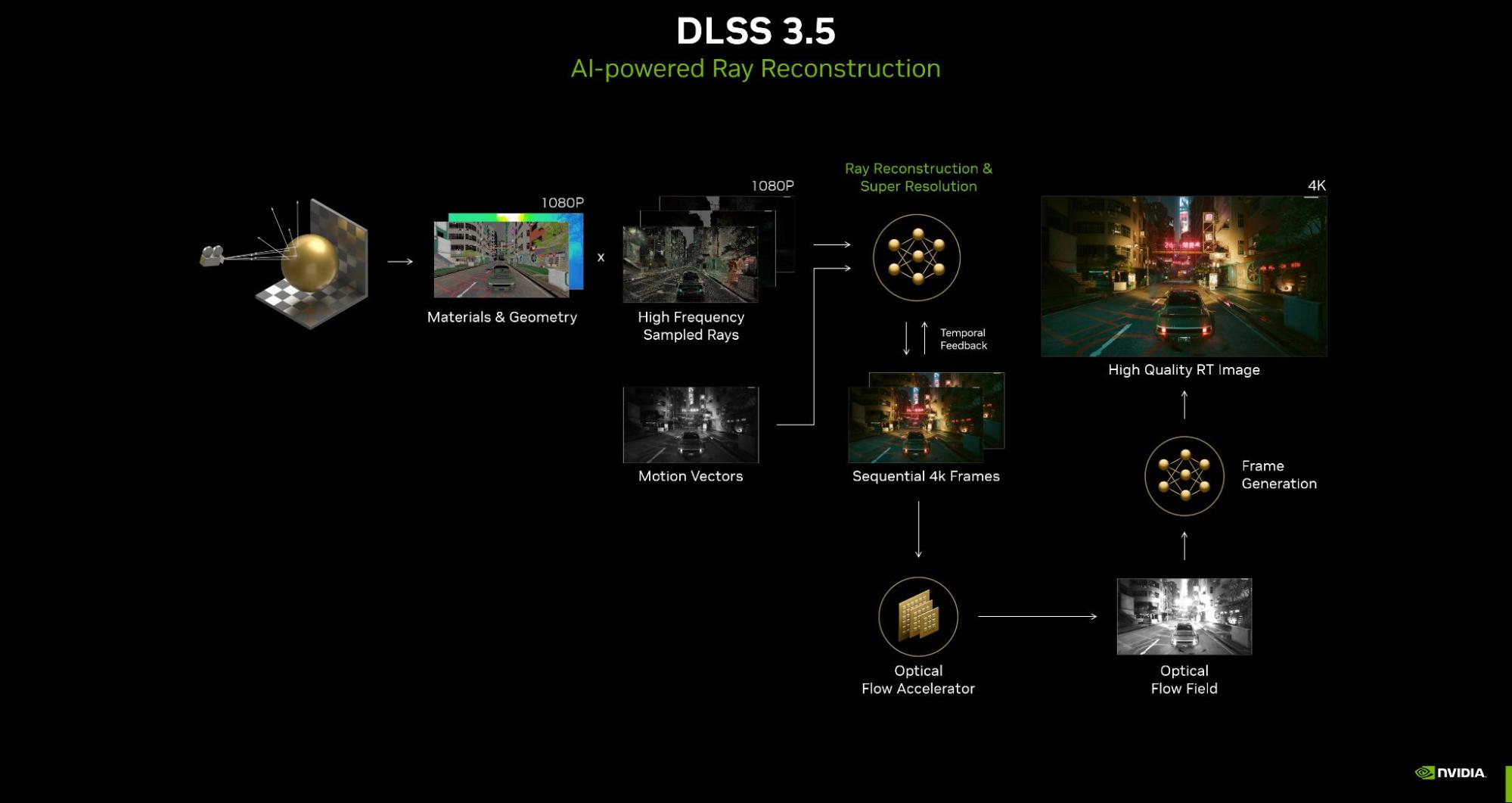
Cyberpunk 2077, Cyberpunk 2077: Phantom Liberty, Alan Wake 2, and Portal with RTX, all coming this fall, will include Ray Reconstruction.
DLSS 3.5 also adds Auto Scene Change Detection to Frame Generation. This feature aims to automatically prevent Frame Generation from producing difficult-to-create frames between a substantial scene change. It does this by analyzing the in-game camera orientation on every DLSS Frame Generation frame pair.
Auto Scene Change Detection eases integration of new DLSS 3 titles, is backwards compatible with all DLSS 3 integrations, and supports all rendering platforms. In SDK build variants, the scene change detector provides onscreen aids to indicate when a scene change is detected so the developer can pass in the reset flag.
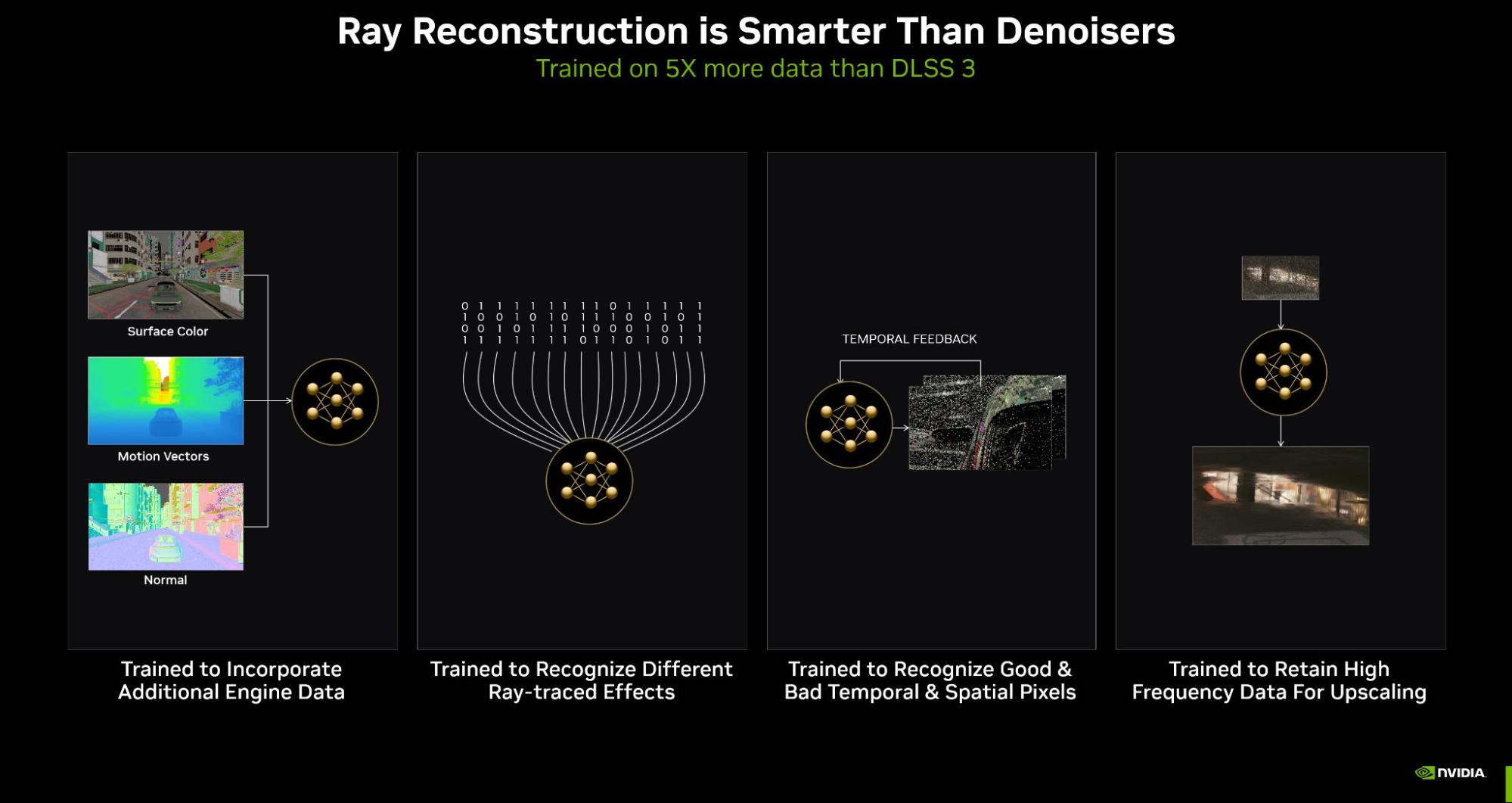
With these new features, you can achieve even better results with ray tracing, and more effectively manage fast scene changes.
Integration into a custom engine is developer-friendly with the Streamline 2.2 SDK, an open-source cross-IHV framework. Simply identify which resources are required for the decided Streamline plug-in. In the game’s rendering pipeline, you can then trigger when to execute the plug-in.
For Unreal Engine titles, simply install the plug-in into your project and most of the work is done. For a step-by-step guide to integration, see How to Successfully Integrate NVIDIA DLSS 3.
Ray Reconstruction will soon be available to all game developers—sign up to be notified. Auto Scene Change Detection is available now in DLSS 3.5 through the Streamline 2.2 SDK and Unreal Engine plug-in.
SANTA CLARA, Calif., Aug. 24, 2023 (GLOBE NEWSWIRE) — NVIDIA will present at the following events for the financial community: Goldman Sachs Communacopia & Technology ConferenceTuesday, Sept. …
As part of NVIDIA and Microsoft’s collaboration to bring more choice to gamers, new Microsoft Store integration has been added to GeForce NOW that lets gamers stream select titles from the Xbox PC Game Pass catalog on GeForce NOW, starting today. With the Microsoft Store integration, members will see a brand-new Xbox button on supported Read article >
 The NVIDIA DOCA framework aims to simplify the programming and application development for NVIDIA BlueField DPUs and ConnectX SmartNICs. It provides high-level…
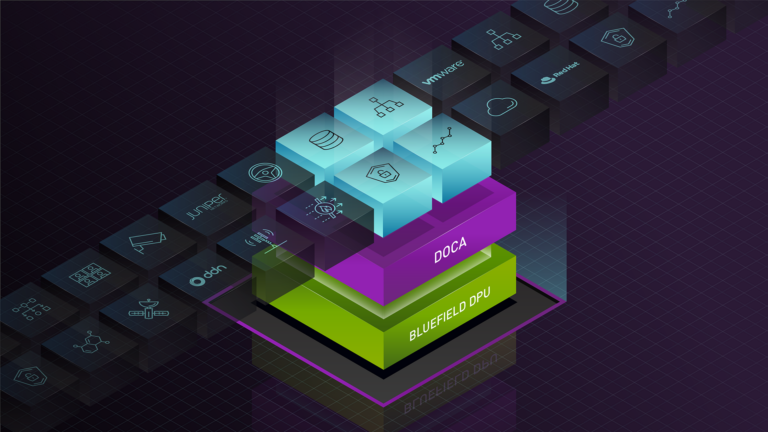
The NVIDIA DOCA framework aims to simplify the programming and application development for NVIDIA BlueField DPUs and ConnectX SmartNICs. It provides high-level abstraction building blocks relevant to network applications through an SDK, runtime binaries, and high-level APIs that enable developers to rapidly create applications and services.
NVIDIA DOCA Flow is a newly updated set of software drivers and a steering library in the DOCA Framework. It runs in user space and enables offloading of networking-related operations from the CPU. This in turn enables applications to process high-packet throughput workloads with low latency, conserving CPU resources and reducing power usage.
DOCA Flow also efficiently optimizes the utilization of BlueField DPUs and ConnectX SmartNICs. DOCA is the key to unlocking the potential of BlueField’s acceleration engines, while DOCA Flow grants rapid access to the acceleration engine for packet-steering logic.
Simplify and expedite development
DOCA Flow offers C library APIs for defining hardware-based packet processing pipelines, abstracting the hardware capabilities of BlueField DPUs and ConnectX SmartNICs. This enables developers to construct high-performance and scalable applications for data center and cloud networks, programmatically defining and controlling network traffic flows, implementing network policies, and efficiently managing resources.
DOCA Flow complements and expands upon the core programming capabilities of DPDK, providing additional optimized features tailored specifically for NVIDIA DPUs and NICs. Further, DOCA Flow simplifies the complexities of the networking stack by offering building blocks for implementing basic packet processing pipelines for popular networking use cases, as well as for more sophisticated ones such as Longest Prefix Matching (LPM), Internet Protocol Security (IPsec) encryption or decryption, and creation or modification of entries in the Access Control List (ACL).
Using pre-created networking building blocks enables you to focus on creating your applications instead of writing low-level packet processing routines. This reduces TTM and frees you to focus on the core of your application, as the building blocks are already efficiently optimized for performance. DOCA Flow building blocks make software development easier, and can be used by developers of all experience levels.
Why DPUs are needed
Modern workloads and software-defined networking lead to significant networking overhead on CPU cores. Data centers and cloud networks now start at speeds of 25 or 100 Gbps and scale up to 200 and even 400 Gbps, requiring CPU cores to handle classification, tracking, processing, and steering of network traffic at immense speeds.
Compute virtualization amplifies networking requirements by generating more east/west traffic internally between host VMs and containers, and adding overlay network encapsulation plus microsegmentation to external communication with other servers or storage devices. As a result, much more networking demand is placed on the CPU.
CPU cores come with a significant cost and are not well-suited for efficient network packet processing. High-bandwidth tasks consume more CPU cores, placing unnecessary strain on the server’s valuable compute infrastructure, which could otherwise be utilized more productively for tenant workloads and application data processing.
In contrast, specialized hardware like SmartNICs and DPUs are specifically designed to efficiently handle fast data movement at scale, with reduced power consumption, heat, and overall cost compared to standard CPUs.
Execution pipes
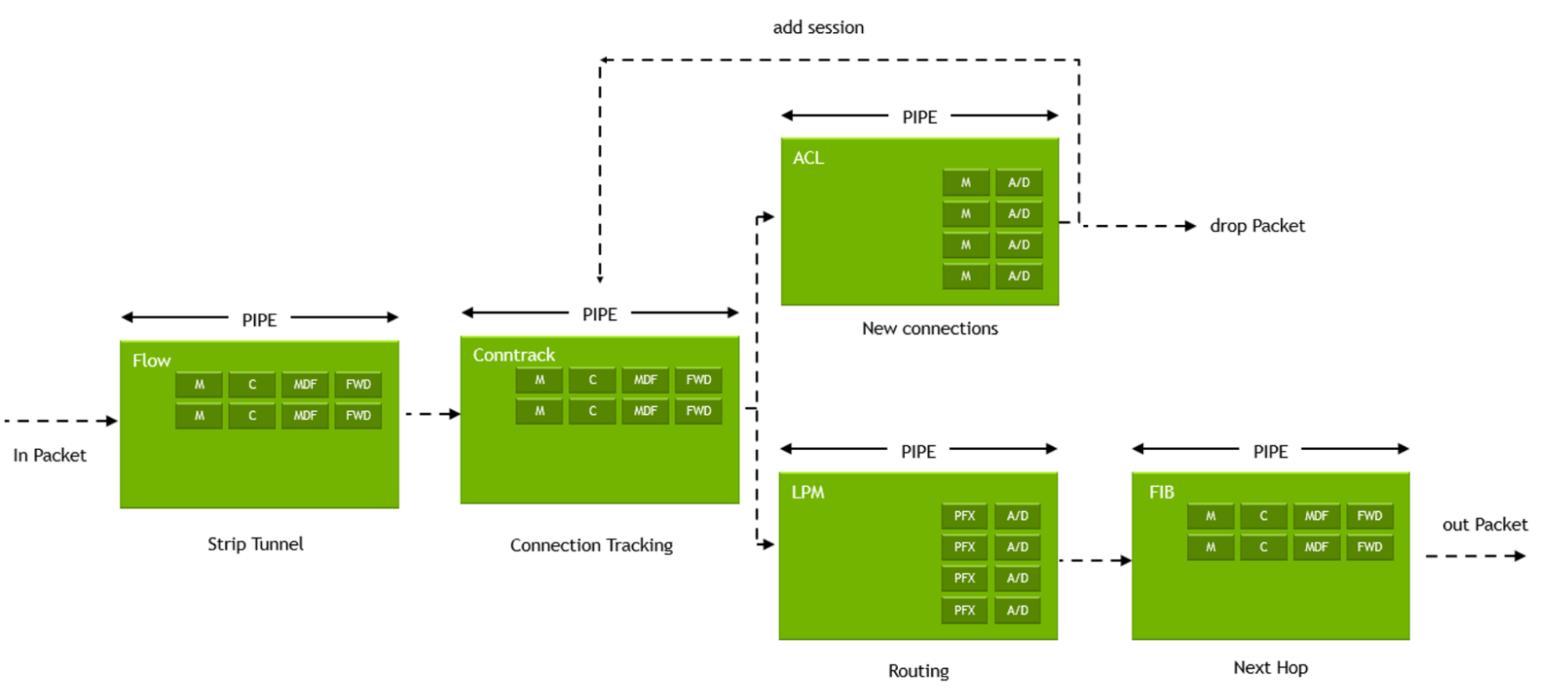
The DOCA Flow library provides APIs that use hardware functions within the BlueField DPU and ConnectX SmartNICs to build generic and reusable execution pipes, where each pipe may consist of match criteria (packet classification) and a set of actions.
Classification enables identifying incoming packets to which logic should be applied, while actions vary and implement the logic that fits each packet’s classification. Using classifications and actions as building blocks provides a flexible method for developing hardware-accelerated network applications including gateways, firewalls, load-balancers, and others.
As mentioned, the actions in the DOCA Flow execution pipe vary and may include, as an example, packet manipulations such as applying Network Address Translation (NAT) logic on MAC addresses, changing source or destination IP addresses, applying overlay network encapsulation, changing header fields, incrementing a counter to measure traffic, and more. Actions may include monitoring traffic through the use of policies, forwarding traffic to different queues–either software queues or hairpin targets, port mirroring or packet sampling for debugging and lawful interception, and dropping packets to enforce policies or access control–all completely offloaded to the DPU or NIC hardware.
Pipes may be chained together through forwarding actions from one pipe to another to form a complete steering tree that defines paths for incoming packets. After executing a predefined action on a packet, the packet may be forwarded to another pipe for further action or inspection, to a software queue, to a hardware hairpin queue, or sent down the wire or dropped.
Steering trees
A steering tree can be used to create hardware-based network applications on a DPU or NIC by implementing common network function logic. This enables packets to be effectively categorized so the appropriate action can be applied to each one. Using the steering tree concept provides multiple benefits, including:
- Customized processing logic for each data flow
- Versatility in directing packets to specific actions or destinations
- Adaptable structure that’s easily resized for changing conditions
- Flexible framework that allows adding new pipe types to meet evolving requirements
- Optimized resource use, minimizing redundancy and enabling shared matches and actions
NVIDIA DOCA Flow use cases
When developing network pipelines for BlueField DPUs and ConnectX SmartNICs, DOCA Flow serves as a fundamental element in simplifying application development efforts. Use cases are applicable across enterprise data centers, telco, and cloud environments, particularly those that are focused on network infrastructure and security that require efficient packet processing.
Additionally, it is designed to handle scenarios involving establishing and removing pipelines at an extremely high rate, and can manage millions of packet exchanges per second. This accommodates software-defined networking applications, data analytics, virtual switching, AI inferencing, cybersecurity, and other packet processing applications. It enables operations like ingesting, examining headers and payloads, tracking connections, and inspecting, rerouting, copying, or dropping packets based on predetermined policies or other criteria.
Open vSwitch virtual switching
Open vSwitch (OVS) enables massive network automation through programmatic extension, and is designed to enable efficient network switching in virtualized environments such as virtual machines (VMs) and containers. Through DOCA Flow, a DPU-accelerated virtual switch (vSwitch) can be implemented in the user space data plane, allowing any server with a DPU to act as a network switch, router, or stateful load balancer.
This provides the flexibility of having a vSwitch available to multiple VNFs, while also significantly increasing small packet throughput and reducing latencies, thus expediting and accelerating communication through enhanced networking performance from the DPU and facilitating both north-south traffic for connecting to users, and east-west traffic for AI and distributed applications.
Next-generation firewall
Modern firewalls are required to inspect data at higher rates in order to combat new threats. However, with increased network speeds, more load is placed on the CPU. This can lead to increased latency, dropped packets, and reduced network throughput. To support higher speeds and more stringent security requirements without sacrificing latency is complex and deploying enough traditional firewalls capable of handling the increased traffic is cost-prohibitive.
DOCA Flow enables the development of an intelligent network filter for each server hosting a DPU. With this filter, the parsing and steering of traffic flows is based on predefined policies, with no CPU overhead. It can be used to create a distributed next-generation firewall (NGFW) that can achieve close to 100 Gbps throughput per server by using dedicated accelerators and Arm cores on the DPU to filter and forward packets based on their appropriate flow, as well as managing the data plane offloads and control plane of the NGFW.
Using DOCA Flow can provide a cost-effective solution to offload packet processing from the CPU to the DPU to increase performance and reduce costs beyond traditional hardware solutions. It offers advanced security features, like intrusion prevention, without sacrificing server performance. It also enables faster network flow inspection within the NIC/DPU.
Virtual network functions
DOCA Flow can accelerate virtualized network functions (VNFs), such as routers, load balancers, firewalls, content delivery network (CDN) services, and more. Telco vendors can replace proprietary hardware and execute virtualized workloads on commodity servers by developing VNFs that run on BlueField DPUs.
By using DPUs for VNF acceleration, a more efficient and flexible solution is achieved, leading to reduced equipment, space, heat, and power requirements compared with commodity servers. All this helps resolve limitations based on cooling and space constraints, enabling new opportunities with 5G, AI, IoT, and edge computing.
Edge applications
DOCA Flow is an ideal solution for edge workloads that require high network speeds and I/O processing capabilities, such as content delivery networks and video analytics systems. Host applications for the edge can be designed using DOCA Flow to run on DPUs installed within general-purpose servers, eliminating the need for expensive proprietary hardware appliances. By utilizing the DPUs acceleration and Arm cores, fewer server CPU cores are needed, allowing for smaller servers that consume less energy, require less cooling, and occupy less rack space. This approach offers cost savings in terms of both CapEx and OpEx.
Summary
The DOCA Flow library can be instrumental for developers by simplifying the development of modern applications that offer accelerated network throughput and latency improvements in packet processing. This is especially true for applications replacing proprietary bare-metal hardware solutions with virtualized applications hosted on commercial-off-the-shelf (COTS) server platforms.
The library consists of several building blocks for efficient networking offloads, including implementing basic packet processing pipelines, Longest Prefix Matching (LPM), and Internet Protocol Security (IPsec) encryption or decryption. Enhancements will be added soon to Connection Tracking (CT) and Access Control List (ACL) to create or modify access control entries. For a sampling of DOCA Flow reference applications, see the DOCA Reference Applications documentation.
By harnessing the capabilities of DOCA Flow, organizations can minimize cost, accelerate service deployment, and optimize hardware utilization within use cases that demand high throughput and low latency.
To learn more, explore the following resources: